How to Find Competitor Contracts That Are Expiring
Last updated: October 16, 2026
When to Use This
Use this when you want a list of accounts whose contract with a competitor ends in the next few months, so you can reach out before renewal.
Before You Start
Know the competitor's name and any common variations (for example, "Tyler" and "Tyler Technologies")
Steps
Click Intel in the left sidebar.
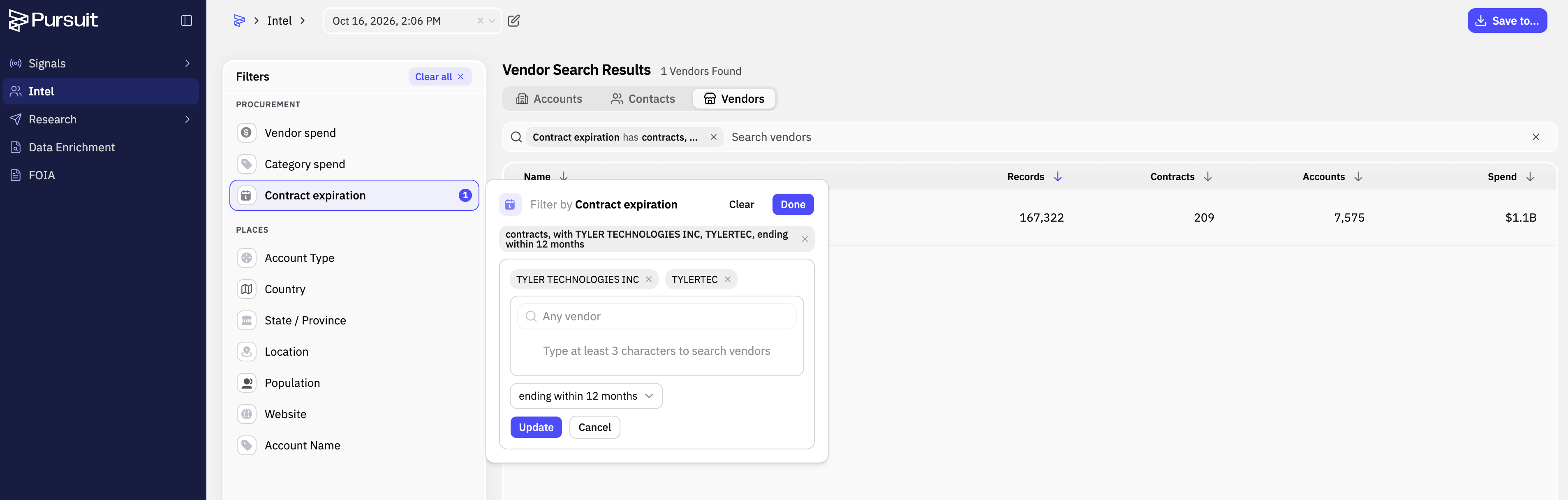
Click Vendor
In the Contract expiration filter, type a competitor name and select Next 3 months, Next 6 months, Next 12 months, or set custom dates. Result: the list shows only accounts with a contract from that vendor ending in your window.
Add any other filters you need, such as state, entity type, or population.
Sort the results by expiration date.
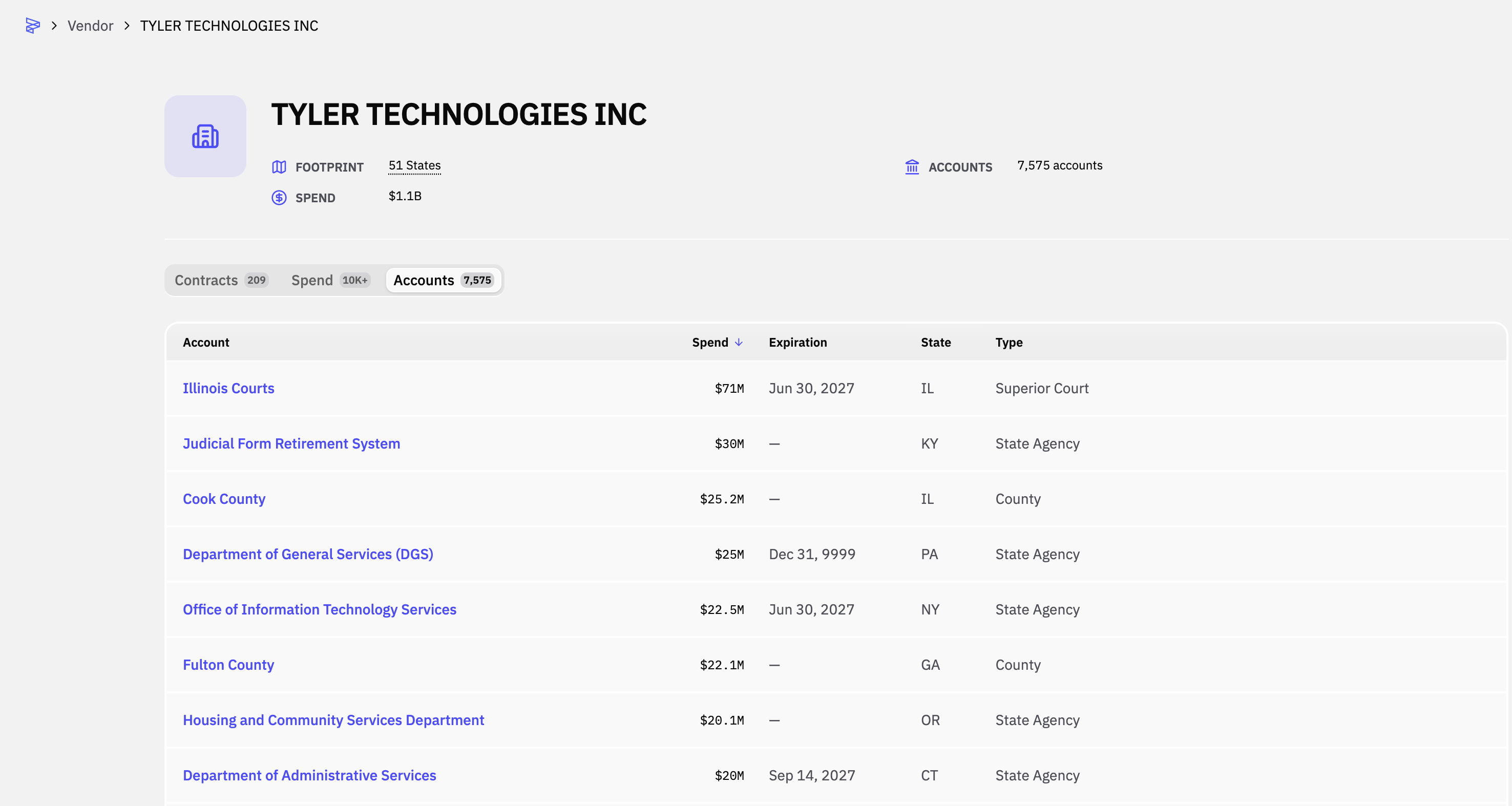
Click an account to open its contract details. Result: you see the end date, value, contract vehicle, renewal terms, and line items.
Click the source document link to read the contract at the cited page.
Click Export to download the list.
What Success Looks Like
You have a sorted, exportable list of accounts whose competitor contract ends in your window, and each contract links to its source document.
Common Issues
Problem: Fewer results than expected. Fix: Add the competitor's other name variations to the Vendor filter. Documents spell vendor names differently.
Problem: A known contract doesn't appear. Fix: Pursuit only includes contracts found in public documents. If the account hasn't published the contract, Pursuit can submit a FOIA Request (a public records request) to get it.
Problem: A product was sold through a reseller. Fix: Filter by the reseller's name as well as the manufacturer's. For example, a Splunk purchase may be recorded under the reseller that sold it.