How to connect Pursuit to your AI assistant (MCP Integration)
Last updated: September 25, 2026
What is it?
Pursuit offers a Model Context Protocol (MCP) server that lets you connect Pursuit's intelligence directly to AI assistants like Claude, Cursor, and other MCP-compatible tools.
The MCP server is built for AI assistants that reason over your Pursuit data conversationally. If you want to pull Pursuit account reference data into a tool that is not an AI assistant, such as Clay, a spreadsheet, or a partner system, use the Accounts API instead. See "What is the Pursuit Accounts API?".
Build Pursuit into any AI-powered workflow your team runs
Ask natural language questions about any public entity, contract, or public record
Search contacts and accounts without leaving your workflow
Pull live procurement signals — fresh opportunities or saved ones — right alongside your research
Manage product profiles directly within your AI Assistant, leveraging your existing context layers
Getting Started
What is MCP?
MCP (Model Context Protocol) is an open standard that lets AI tools connect to external data sources. Think of it as a secure bridge between your AI assistant and Pursuit — the AI can search entities, find contacts, and pull documents on your behalf, all within a single conversation.
The Pursuit MCP server is available at https://api.pursuit.us/mcp, or you can get started from the Integrations page in the platform (Settings ➡ Integrations ➡ AI Assistants)
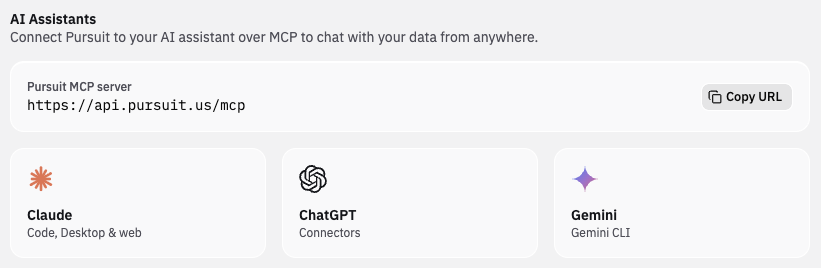
To connect it to your AI assistant:
Head over to
Claude.ai / Claude Desktop: Add Pursuit as an MCP integration in your settings or workspace configuration.
Claude Code / IDE tools: Add the MCP server URL to your
.mcp.jsonor workspace settings.Other MCP clients: Use the server URL with your client's MCP configuration.
Pursuit Agent is the name for what you do with this connection. For the full picture of what it covers, see What is the Pursuit Agent?
What Can You Do with the Pursuit MCP?
The Pursuit MCP gives your AI assistant several super powers:
Search accounts
Find cities, counties, school districts, transit authorities, special districts, and other public sector organizations.
What you get back | Entity name, state, entity type, population, website URL, and a unique entity ID you can use to scope other searches. |
Example prompts |
|
Search contacts
Find officials and public sector contacts by name, job title, or department.
What you get back | Contact name, title, department, email, phone, and a confidence score indicating data reliability |
Example prompts |
|
Get rich insights
Search Pursuit's expansive data — including meeting minutes, budgets, RFPs, contracts, agendas, financial reports, and more. You can filter by entity, document type, and recency.
What you get back | Relevant document passages with metadata including title, entity name, document type, date, and relevance score. |
Example prompts |
|
Run Research
Research a single account or an entire CRM territory across web sources, documents, and LLM analysis, with results organized in a worksheet
Mention "Pursuit Research" and a specific entity (or multiple)
(e.g. "Based on Pursuit Research, which legacy systems is City of Abilene still running that represent modernization risk, and how should I frame our solution as a path forward?")
Spans your whole territory. It reads across every worksheet you have access to — your own and any shared company workbooks.
Strictly read-only. These tools only read existing research. They never start, re-run, or change anything — no surprise credit burn, no mutated data.
Change your settings
Update Personas, Authority Levels, Radar territory, and Products, set up Radar notifications, run Plays, and invite teammates if you are an Admin
Preview Signals
See the signals a product profile returns before you change it. Ask your AI assistant for sample signals on any product profile, or give it draft signal criteria to test without saving. Your team's Radar doesn't change until you save the profile. Example: "Without saving, preview signals for our Utility Billing profile and tell me which criteria return fewer than two hits per month."
Pursuit Agent asks you to confirm before anything that spends credits, edits company-wide filters, changes Radar settings, or sends an invitation.
Common Workflows
Here are some practical ways teams use the Pursuit MCP:
Meeting Prep
Build a comprehensive briefing in seconds.
"I have a meeting with the City of Portland, Oregon tomorrow. Find their recent council meeting minutes, any active RFPs, and the city manager's contact info."
Prospecting & Account Research
Get entity context, a key contact, and live procurement opportunities — all in one conversation.
"Search Pursuit for the City of Charlotte, NC. Find their IT director and any recent funding announcements related to software or technology services."
Based on Pursuit Research on City of Adrian, what's the single biggest objection I'm likely to face in a discovery call, and what's the strongest counter?
Competitive Intelligence
Surface competitive mentions across public documents without manual searching.
"Search for RFPs mentioning [competitor name] in Texas municipalities over the past year."
Budget & Funding Analysis
Quickly identify budget allocations that signal buying intent.
"Find the proposed budget for Jefferson County, Colorado and look for line items related to public safety technology."
FOIA & Public Records Research
Tap into Pursuit's public records corpus for compliance and research needs.
"Search for FOIA documents from the State of Delaware related to data privacy."
Tips
Be specific with entity names. Include the state to avoid ambiguity (e.g., "Springfield, Illinois" not just "Springfield".
Use document type filters when you know what you're looking for (e.g., RFPs, budgets, meeting minutes).
Use recency filters to focus on recent activity (e.g., "last 90 days" or "past year").
Start broad, then narrow. Search for the entity first, then search for contacts and documents within it.
Chain prompts together. Ask follow-up questions — the AI maintains context across the conversation.
FAQ
Q: Is my data secure?
A: Yes. The MCP connection uses your authenticated Pursuit credentials. The AI assistant can only access the same data you can access in the Pursuit platform.
Q: Does this cost extra?
A: The Pursuit MCP integration is included with your Pursuit subscription. AI assistant costs (e.g., Claude Pro) are separate.
Q: What AI tools work with this?
A: Any MCP-compatible client, including Claude.ai, Claude Desktop, Claude Code, Cursor, and other tools that support the Model Context Protocol.
Q: What can Pursuit Agent change?
A: Pursuit Agent can create and edit Product profiles, Personas, and Authority Levels, change your Radar territory and Products, set up Radar notifications, and send user invitations if you are an Admin. Entities, contacts, and documents stay read-only: Pursuit Agent reads them, it does not edit them. Every change is confirmed with you first, and it applies only within your existing permissions.