How to Add Your Email Signature to Play Emails
Last updated: November 6, 2026
When to Use This
Use this when you want every email you send from a Play to end with the same signature you use in Gmail or Outlook, instead of folding a sign-off into the prompt.
Before You Start
Steps
Click your profile in Pursuit.
Click Settings navigate to My Account.
Find the Email signature section.
Select Use a Custom signature.
Paste your signature from Gmail or Outlook, or build one in the editor. Formatting, links, and images carry over.
Click Save.
Run a Play that sends email and open the draft for review. Your signature appears under the draft, exactly as the recipient will see it.
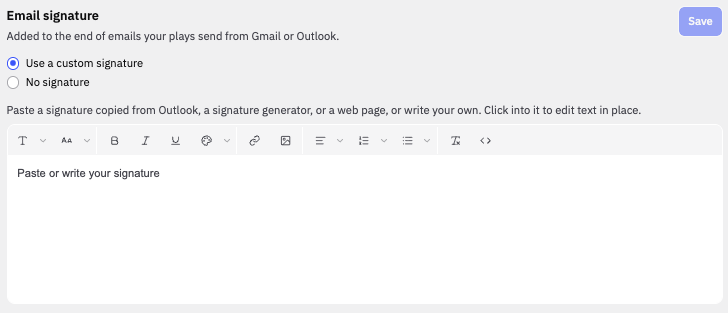
To send Play emails with no signature, select No signature in step 4 and click Save.
What Success Looks Like
Every Play email you review shows your signature under the draft before you approve it. You set it once, and it applies to every Play email you send.
Common Issues
Problem: Your signature doesn't appear on a Play email. Fix: Open your profile settings and confirm Custom signature is selected and saved. If No signature is selected, Pursuit sends without one.
Problem: Images in your signature don't show. Fix: Paste the signature directly from a sent email in Gmail or Outlook rather than from a document, so the image links come with it.
Problem: You want Pursuit to use the signature already saved in Gmail. Fix: Gmail signature sync is coming soon and is not available yet. Paste your Gmail signature into the editor for now.