Outbound Email with Instantly
Last updated: June 16, 2026
Pursuit's Instantly integration lets you launch personalized outbound email sequences directly from your Radar signals — and automatically keep your CRM and Slack in sync as conversations happen.
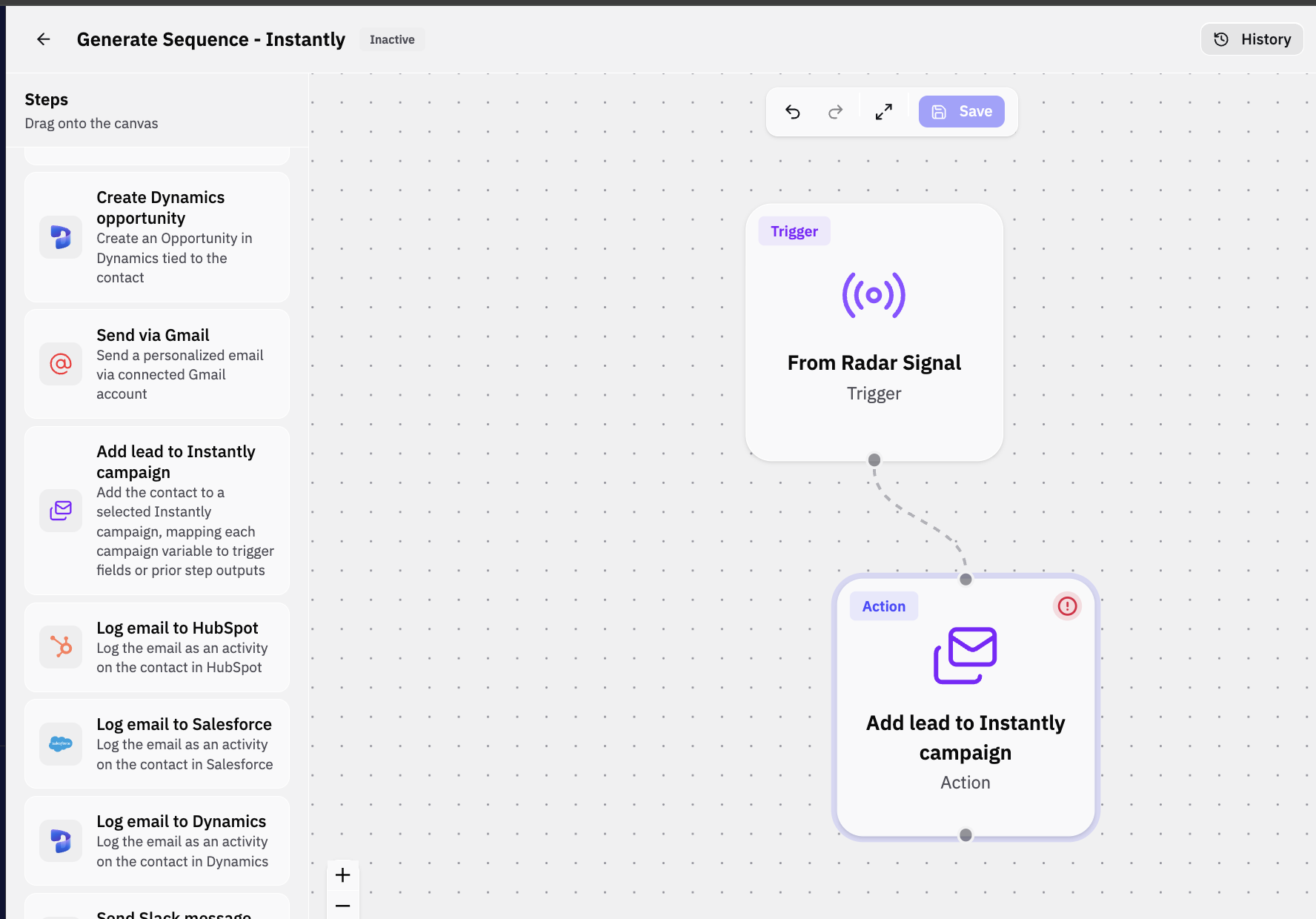
Everything lives inside the Play Builder. A Play is a simple workflow: a trigger happens, and Pursuit takes an action. The Instantly integration ships three ready-to-use plays:
Add contacts to an email sequence — a rep runs this on a Radar signal contact to enroll them in a personalized Instantly campaign.
Log Instantly emails to HubSpot — automatically mirrors every sent email and reply onto the contact and account in HubSpot.
Forward replies to Slack — posts every inbound reply to a Slack channel you choose.
Most teams run all three: Play 1 starts the conversations, Play 2 keeps your CRM clean, and Play 3 gives your team a live reply feed.
Before you start: connect your integrations
Each play requires specific integrations to be connected under Settings → Integrations.
Connecting Instantly is a one-time step. Pursuit validates your API key and registers a webhook to receive email and reply events. No campaigns are created at this stage — campaigns are only created when you set up Play 1.
Play 1: Add contacts to an email sequence
This is the core outbound play. When you set it up, Pursuit creates a new Instantly campaign tied to the play. Reps can then run the play on any Radar signal contact to enroll them in the sequence.
Setup
Go to Plays → New play → Templates and select "Radar Signal → Instantly email sequence."
Name the play (e.g., Q3 expansion outreach).
Choose how many emails the sequence should have (1–5).
Create the play.
Pursuit provisions a new Instantly campaign named "[your play name] (Pursuit)" and drafts a default sequence where AI writes each email, personalized to the buying signal, the contact, your product, and you as the sender.
Personalizing the emails
Each email is a template you can freely edit. You can use:
Literal text you type directly
Context tokens like {{contactFirstName}}, {{accountName}}, or {{userFirstName}} — filled in per contact when the email sends
Inline AI prompts in {* ... } syntax (e.g., {Open with the buying signal and why it matters now.*}) — AI writes that section fresh for each contact
The default sequence includes an opener, follow-ups that each add a new angle, and a friendly break-up email. It works on day one and you can adjust from there.
Running the play (rep workflow)
Open a Radar signal and navigate to the contacts on the account.
Click Run play and select this play.
Run it on a single contact, or use "Add all contacts" to bulk-enroll the entire signal.
Each contact receives their own personalized sequence. The first email sends on the campaign's next available sending window; follow-ups are spaced automatically.
What you can and can't change after creation
To change the sequence length or send cadence, create a new play.
Play 2: Log Instantly emails to HubSpot
This play keeps HubSpot in sync automatically. Whenever an Instantly email is sent or a reply is received, Pursuit logs it to HubSpot — and creates the contact or account if they don't already exist.
Setup
Connect HubSpot under Settings → Integrations.
Go to Plays → New play → Templates and select "Instantly Email → HubSpot activity."
Name the play, create it, and activate it.
No field mapping required. The play runs automatically in the background — no rep action needed.
What it does on every email event
Upserts the contact in HubSpot, matched by email address
Upserts the parent account, matched by domain, and associates the contact to it
Logs the email as an activity on the contact's timeline, including subject, body, direction (sent or received), and from/to addresses
Play 3: Forward replies to Slack
This play gives your team a live feed of inbound replies. Sent emails are not forwarded — only replies.
Setup
Connect Slack under Settings → Integrations.
Go to Plays → New play → Templates and select "Instantly reply → Slack."
Name the play, create it, then open it to pick a Slack channel.
Optionally customize the message format, then activate the play.
Each reply produces a Slack message like:
New Instantly reply from Jane Doe (jane@acme.com) at Acme Re: your note about the funding round Thanks for reaching out — happy to chat next week...
Sending schedule
All Instantly campaigns created by Pursuit use the same schedule:
Window: 6:00 AM – 5:00 PM Eastern Time
Days: Monday through Friday only
Contacts added outside this window receive their first email on the next available slot. Follow-ups also send within this window.
Other defaults:
Stops on reply — once a contact responds, the rest of their sequence is cancelled automatically
Open tracking is on
Risky contacts are skipped
FAQ
Can the same contact be in more than one campaign? Yes. If you run two different sequence plays on the same contact, they'll be enrolled in both campaigns. Use this deliberately — you generally don't want someone receiving two cold sequences at once.
Can I add the same contact to the same campaign twice? No. If a contact is already a lead in that campaign, Pursuit skips them rather than duplicating the enrollment. Their existing sequence continues undisturbed.
A contact replied — will they keep getting emails? No. Campaigns stop on reply, so the remaining sequence is cancelled automatically as soon as they respond.
Will Pursuit log or forward emails from leads I added directly in Instantly? No. The HubSpot and Slack plays only act on leads that a Pursuit play enrolled. Leads from unrelated Instantly campaigns are ignored.
Could a reply show up in Slack or HubSpot twice? No. Pursuit de-duplicates email events so each email is logged and forwarded exactly once.
When does the first email actually send after I run a play? The contact is enrolled immediately, but the first email sends on the next open sending window (weekday, 6 AM–5 PM ET).
What happens to the Instantly campaign if I delete a sequence play? The campaign stays in place. To stop it, pause or archive it directly in Instantly.
Can I change the number of emails or the timing after creation? No — the email count and delays are fixed when the campaign is created. You can edit email content anytime. To change length or cadence, create a new play.
Which contacts can I run the sequence play on? Any contact attached to a Radar signal. Use the "add all contacts" bulk action to enroll every contact on a signal at once. As new contacts surface on that signal, you can safely re-run the bulk action — existing enrollments are skipped automatically.