Setting Up Zapier with Pursuit
Last updated: June 9, 2026
Connect Pursuit to Zapier to automate workflows between Pursuit and hundreds of external tools — CRMs, email sequencers, spreadsheets, project management, and more.
Connecting Zapier
Go to Settings → Integrations.
Find Zapier under Messaging & Automation.
Click Connect and follow the authentication flow.
Once connected, Pursuit becomes available as a trigger or action in your Zapier workflows.
Common Use Cases
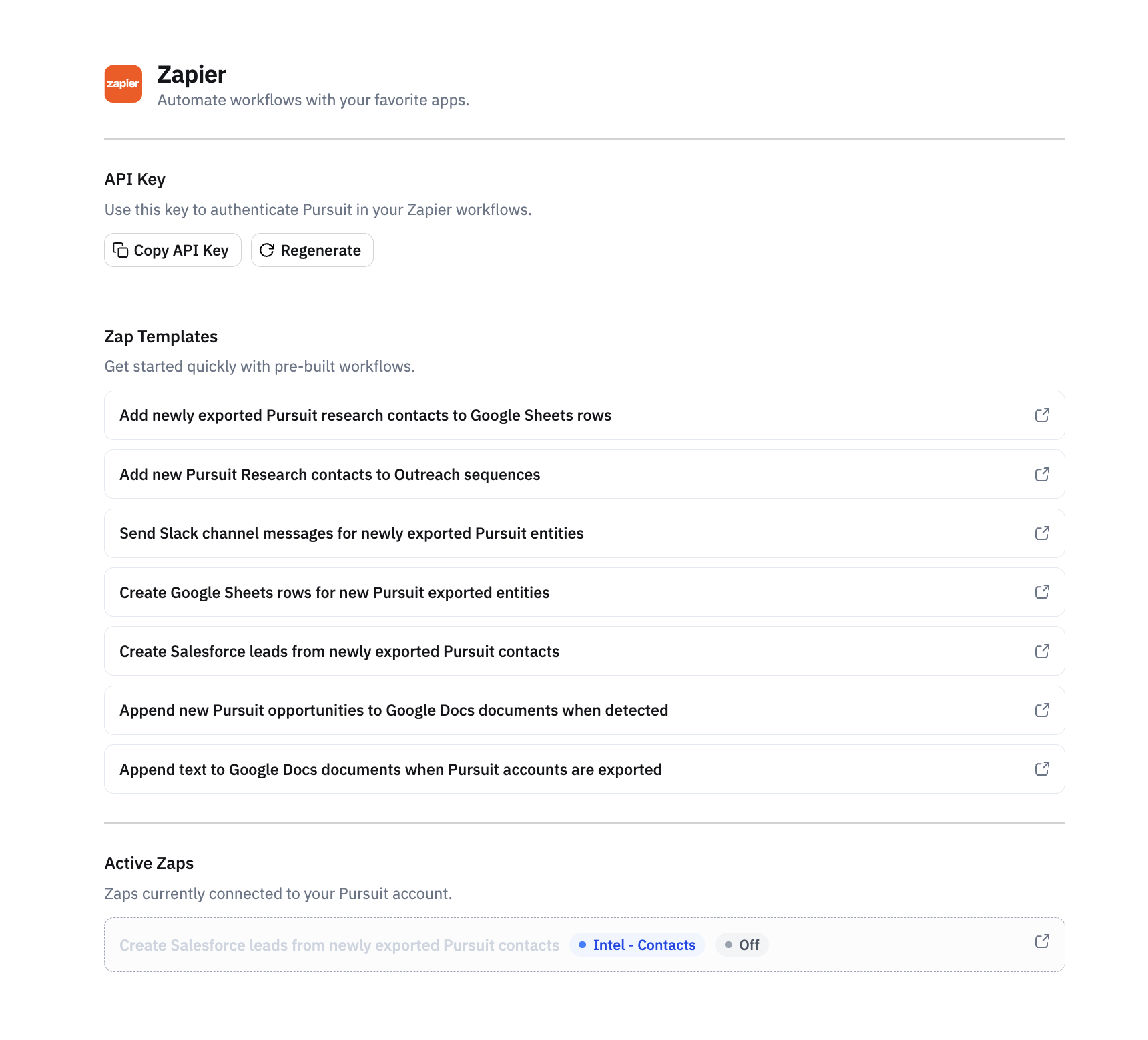
Push pipeline exports to a CRM that isn't Salesforce or HubSpot
Send enriched data to Google Sheets for team-wide tracking
Trigger email sequences when entities are exported from Research
Notify a Slack channel when a specific type of export happens
Feed data into a BI tool for custom reporting
Using Zapier with Webhooks
For more granular control, you can set up webhooks that push data from pipeline mode exports directly to a Zapier webhook URL. This lets you trigger Zaps based on specific export events.
Tips
Start with a simple Zap (e.g., pipeline export → Google Sheet row) and expand from there.
Test your Zap with a small export before running it on a full dataset.
For direct Slack integration (Research Assistant), see 📄 Using the Pursuit Slack Research Assistant