How to Connect Your Calendar to Pursuit
Last updated: August 28, 2026
When to Use This
Connect your calendar when you want the Morning Meeting Brief, the daily email that prepares you for your next 24 hours of meetings.
What You Need
A Gmail or Outlook account
Permission to authorize third-party apps on that account. If your organization restricts this, your IT admin approves the connection first.
Steps
Click Settings → Integrations.
Find the email card for your provider, Gmail or Outlook.
Click Connect. If you have already connected email and want to also connect calendar, please disconnect and reconnect the integration to permit access to the calendar features.
Sign in to your Google or Outlook account in the window that opens.
Review the permissions Pursuit requests and click Allow.
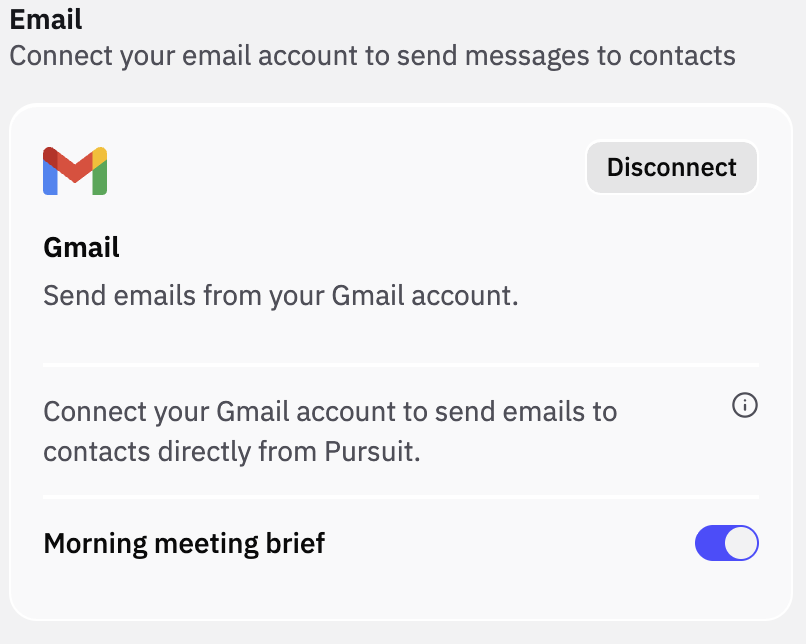
Confirm the card now shows your connected account and Morning Meeting Brief is toggled on.
What Success Looks Like
The email card in Settings → Integrations shows your account as connected, and the Morning meeting brief switch is on. Your first brief arrives the next weekday morning.
Common Issues
Problem: You connected your calendar but no brief arrived. Fix: Check that the Morning meeting brief switch is on in Settings → Integrations. Briefs send on weekday mornings only, so a Saturday connection produces its first brief on Monday.
Problem: The brief arrived but is missing a meeting you expected. Fix: A meeting only appears when at least one guest is already a contact in Pursuit. Add the guest as a contact on the account, and the meeting appears in the next brief.
Problem: The sign-in window closes without connecting. Fix: Your organization blocks third-party app authorization. Ask your IT admin to approve Pursuit, then run the steps again.
Next Step
Read What is the Morning Meeting Brief? to see what lands on each meeting card and how the Talking Points are researched.