Setting Up Radar Inbox: Your Daily Signal Digest
Last updated: August 7, 2026
Overview
"Inbox" is a personal digest of new signals that meet whatever criteria you specify. Set it up once, and let Pursuit do the territory-wide research for you each night. New signals delivered directly to you each morning that you have new signals.
Setting up your "Inbox"
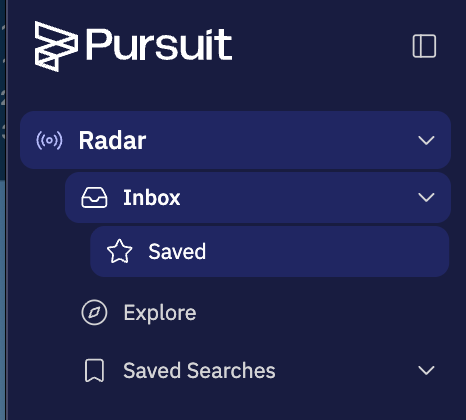
Navigate to Radar ➡ "Inbox"
Click on
Radarfrom the lefthand navigation menuClick on
Inboxon the left-hand side
Configure your notification criteria
Tell Pursuit what you want to be notified about - which product or signal profiles, your territory or other accounts.
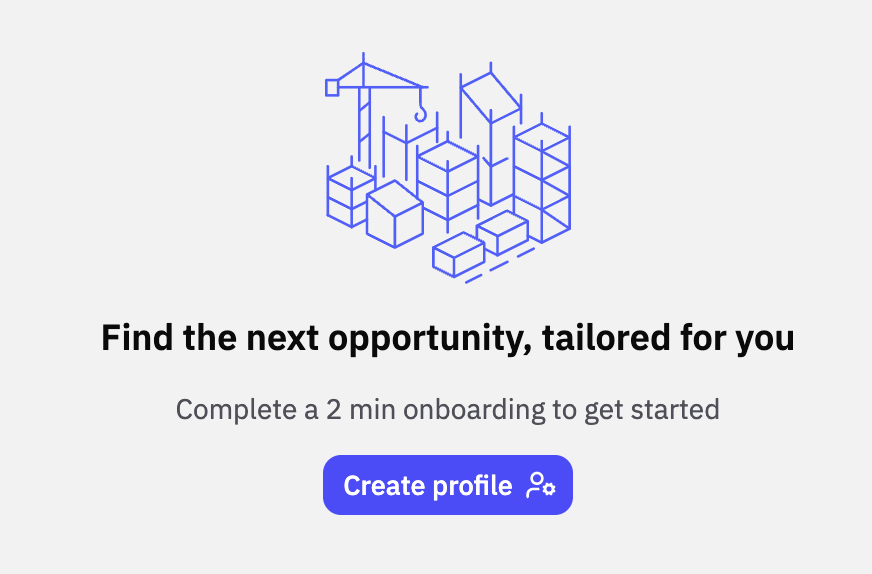
Click the
Create Profilebutton
Select your products
These are your signal profiles - each maps to a product or category of related signal criteria (e.g. specific product lines, competitors, campaigns, etc.). These are set up ahead of time with the Pursuit team and your company admins.
Select as many as you want to be notified about
Select your territory or accounts of interest
Use the filter panel to narrow down your notifications to the specific territory, accounts, or types of accounts you want notifications about (e.g. different entity types, certain population ranges, geographic areas, etc.)
Tip: When your CRM is connected to Pursuit, you can easily select your named accounts by filtering for your name under the CRM dropdown. Reach out to your internal Pursuit admin team or Pursuit Support if you don't see this option.
4. Click Find Opportunities
Note: After clicking Find Opportunities or making changes to your Inbox settings, it can take a few minutes for the changes to populate and for signals to appear.
Moving forward, Pursuit will surface relevant signals overnight, and you'll get notified of new signals in the morning.
Getting Inbox Signals delivered to you
Inbox notifications can be delivered to you wherever you are.
Enabling Daily Email Notifications
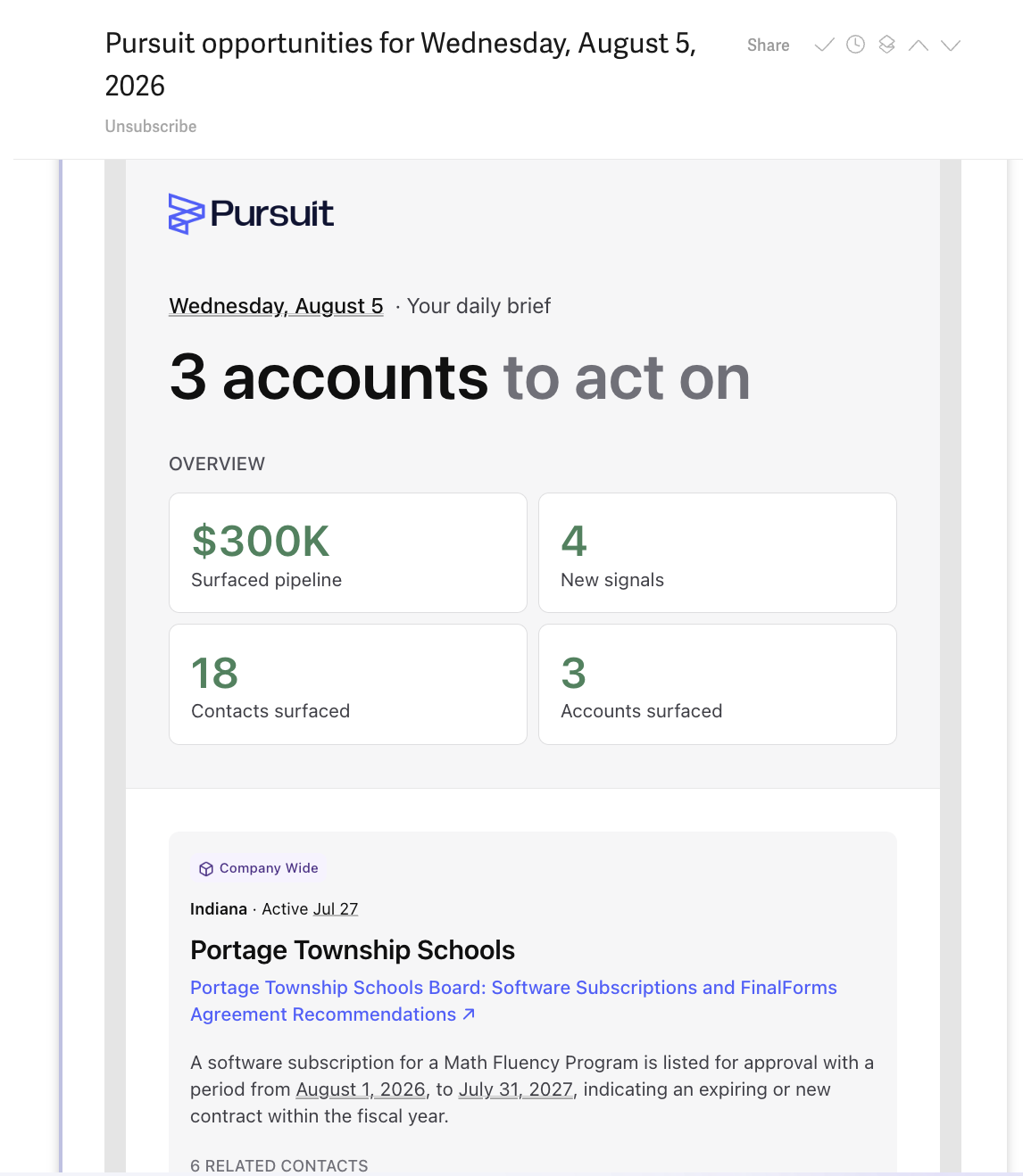
To receive your daily email digest, ensure the daily emails toggle is turned on in your inbox settings.
Troubleshooting: If the toggle is enabled but you're still not receiving emails, contact Pursuit Support for assistance.
Delivery Option | Setup |
Email Digest | Turned on by default when you set up your Radar profile |
Slack Digest | Click the You may need to check with your Pursuit and Slack admins to make sure the Pursuit Research Assistant slackbot is enabled |
Chrome Extension | Install the Pursuit Chrome Extension Once installed, you will see any surfaced signals for your accounts whether you're on their website or in your CRM. |
Pursuit Inbox | Once your profile is set up, you can see all of your signals by clicking on the (This is the same area you just configured your profile.) |
Where ever else you may work | Signals can be sent to almost any other systems you work through Pursuit's webhooks, CRM integrations, and Zapier. Talk to your Pursuit admin team about having signals sent to your other system(s) of choice via one of our many integration options. |
Editing Your Profile
To adjust your signal profile after initial setup:
Go to
Radar➡InboxClick Edit Profile Settings in the top right corner

Update your notification criteria
Click Find Opportunities to re-run with the new criteria
Tips
Start focused: Select the 2–3 most relevant product profiles and your specific account list. You can expand later.
Use your CRM sync: Filtering by
Owner IDorAccount Ownerto ensure you only see signals for your assigned accounts.Signals are quality-filtered: Pursuit surfaces the top signals each day, so you won't be spammed with low-relevance alerts even if you have a large territory.