How to Set Up Default Impact Report Filters for Pipeline Attribution
Last updated: August 14, 2026
When to Use This
You track Pursuit-sourced opportunities with a field in your CRM, and you want the Pipeline tab of the Impact Report and the monthly team report to count only those opportunities.
Before You Start
Admin access to Pursuit
An active CRM sync (Salesforce or HubSpot)
The name of the CRM Opportunity field your team uses to identify Pursuit-sourced opportunities
Steps
Open Settings → Impact Report.
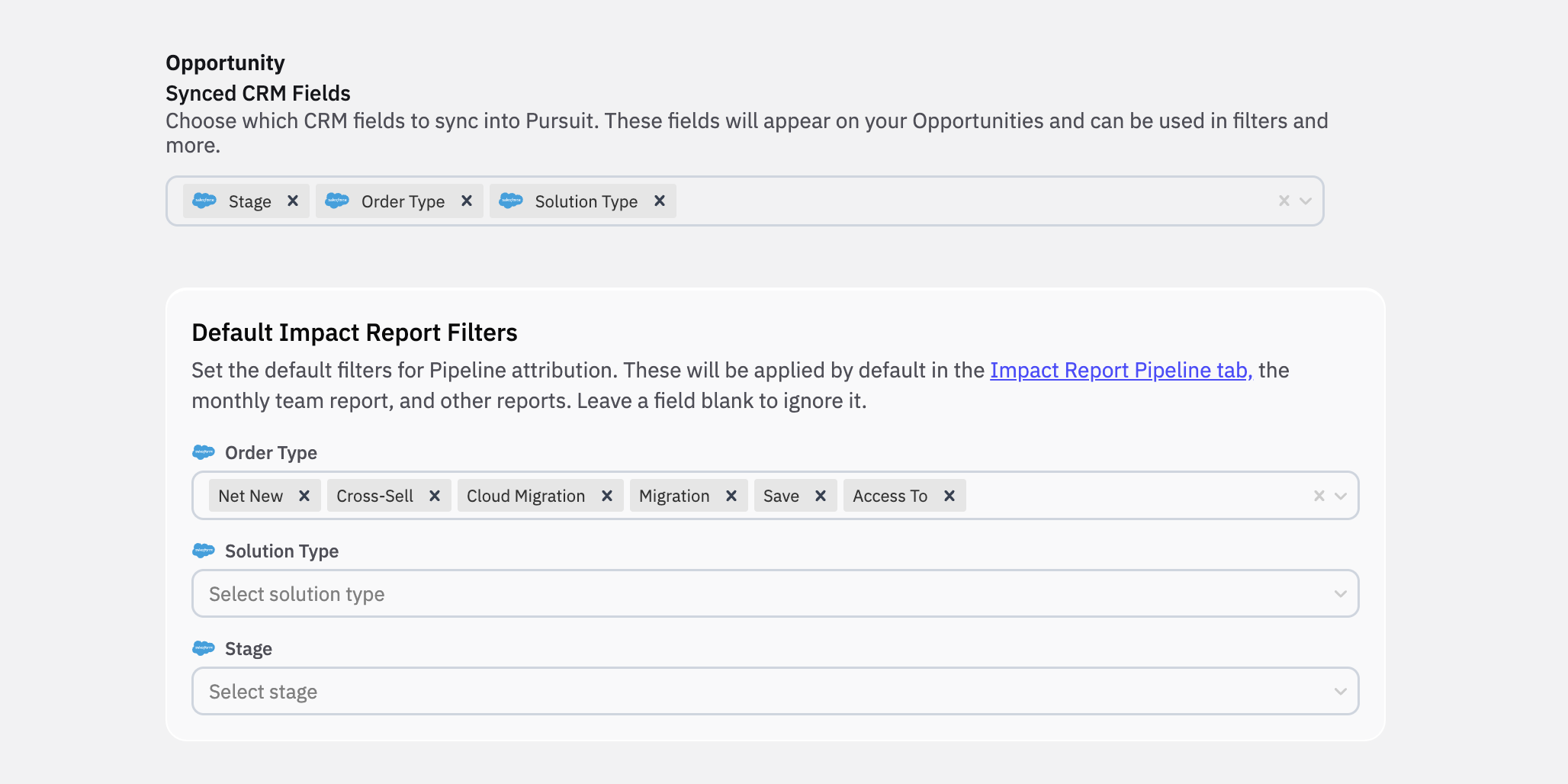
Find the Opportunity → Synced CRM Fields selector.
Select each CRM Opportunity field you want available in Pursuit. Only fields you select here appear as filters.
Scroll to Default Impact Report Filters. Each field you selected in step 3 now appears as its own filter.
Set the values for each filter you want applied by default:
Pick-list fields (Order Type, Deal Stage, Deal Type, Solution Type, Industry) accept one or more values
Date fields (Close Date, Create Date) take an After and Before date
Amount takes a Min and Max
Leave any field blank to ignore it. A blank field applies no filter.
Click Save.
Warning: Saved defaults are company-wide, not per-user. Every person on your team opens the Pipeline tab with these filters applied.
Note: Salesforce and HubSpot behave the same here. The only difference is which fields your CRM exposes. Filters behave the same way they do everywhere else in Pursuit.
What Success Looks Like
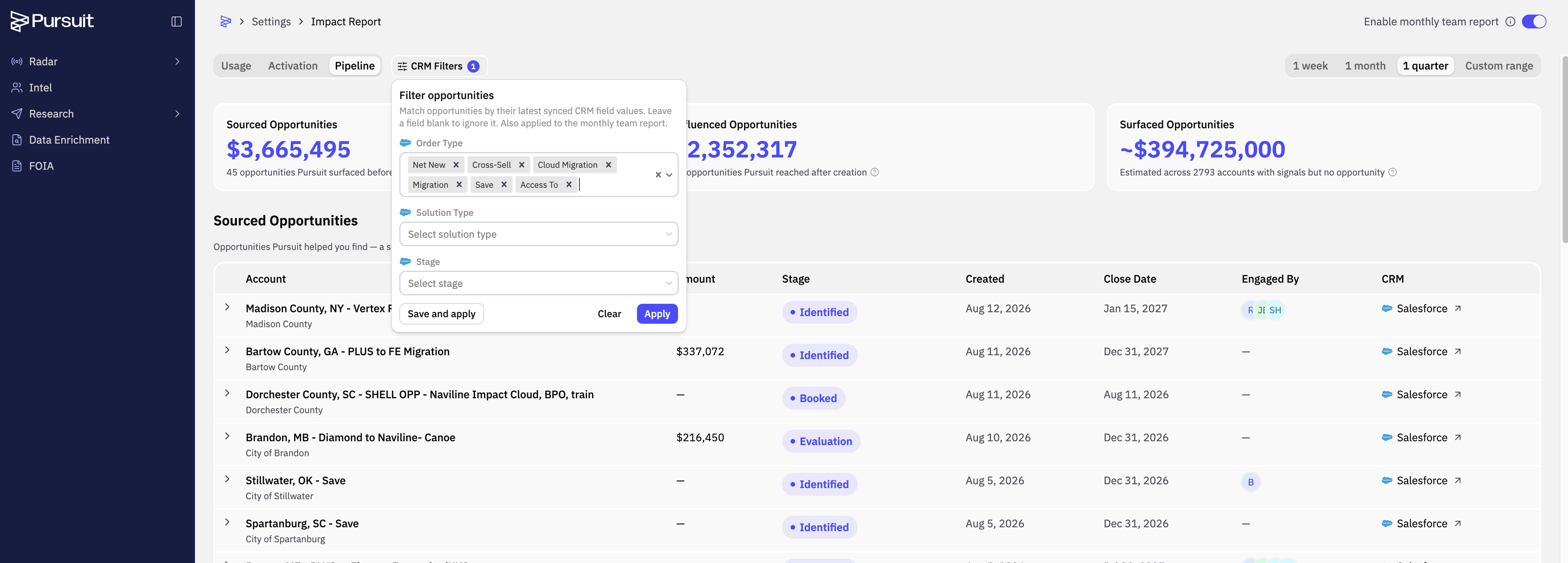
Open Impact Report → Pipeline. The CRM Filters button shows a count badge, and your saved values are already applied. The Sourced Opportunities, Influenced Opportunities, and Surfaced Opportunities totals reflect those filters, and so does the monthly team report.
Common Issues
Problem: There is no CRM Filters button on the Pipeline tab.
Fix: No fields are selected in Synced CRM Fields. Complete steps 2 and 3, then reload the Pipeline tab.
Problem: The field you need is not in the Default Impact Report Filters list.
Fix: Add it to Synced CRM Fields first. If it is not available there, confirm it is an Opportunity-level field in your CRM and included in your CRM sync.
Problem: Your monthly team report numbers do not match what a rep sees on the Pipeline tab.
Fix: The rep changed filters on the tab without saving. Ad hoc filter changes affect only that view. Only saved defaults feed the monthly report.
Next Step
Review your Pipeline totals against your CRM's Pursuit-sourced opportunity report to confirm the filters are catching the right deals.