How to Tune Signals for a Product Profile
Last updated: September 25, 2026
When to Use This
Use this after you build a product profile, to confirm its signals point at real demand before your team starts working them.
Before You Start
A product profile that has already returned signals
Admin access to that product profile
Steps
Open the product profile you want to tune.
Click Tune signals. Pursuit shows one signal at a time under the question "Is this a good signal?"
Read the signal card. It shows the entity, the source document, the criteria the signal matched, and a short summary of why it surfaced.
Click Good signal if the signal indicates demand for this product. The next signal loads automatically.
Click Give feedback if the signal misses. Type what you expected instead, then click Send feedback.
Click Out of my territory if the signal indicates real demand but names an entity you don't sell to. This keeps the profile intact and tells Pursuit the problem is coverage, not relevance.
Answer every signal in the set. The dots above the card track your position, and the back arrow returns you to the previous signal.
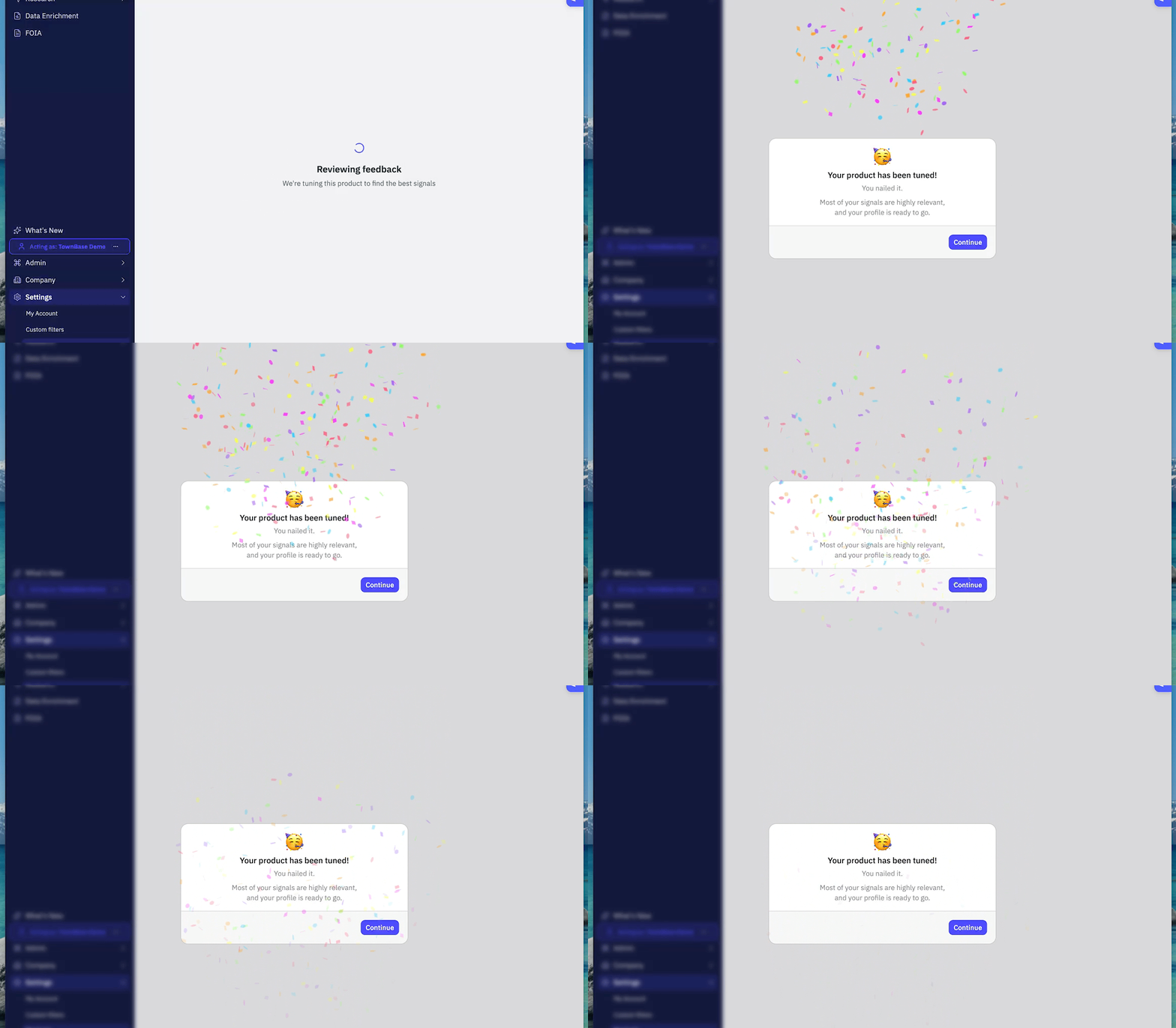
Wait on the "Reviewing feedback" screen while Pursuit retunes the product profile against your answers.
Tip: Answer from the product's point of view, not your own pipeline. The question is whether this document shows someone needs what you sell, not whether you personally want the account.
Tip: If you use an AI assistant, test new criteria through the Pursuit MCP before you tune. See How to Improve Product Profiles by Testing Signal Criteria with the Pursuit MCP
What Success Looks Like
You reach a confirmation that reads "Your product has been tuned," which means most of your signals came back highly relevant and the profile is ready to ship. Click Continue, then open Radar to start working the signals.
Common Issues
Problem: Most of the signals in the set look wrong. Fix: Use Give feedback on each one instead of clicking through. Tuning only learns from the answers you give, so a skipped signal teaches it nothing. Run Tune signals again after the profile retunes to check whether the results improved.
Problem: You can't tell whether a signal is bad or just outside your coverage. Fix: Ask one question: does this document indicate demand for the product? If yes, click Out of my territory. If no, click Give feedback.
Problem: You answered a signal incorrectly. Fix: Click the back arrow above the card to return to that signal and answer again.
Problem: You finish the set but don't reach the tuned confirmation. Fix: Your signals still include too many misses. Read the feedback you gave, tighten the criteria on the product profile, then run Tune signals again on the refreshed set.