Creating and Managing Products
Last updated: August 14, 2026
Products control what Pursuit's AI looks for when scanning government documents. Configuring them well is one of the highest-impact things an admin can do for Radar quality.
Accessing Products
Go to Settings → Products. Click any product to view or edit. Click Create new product to add one.
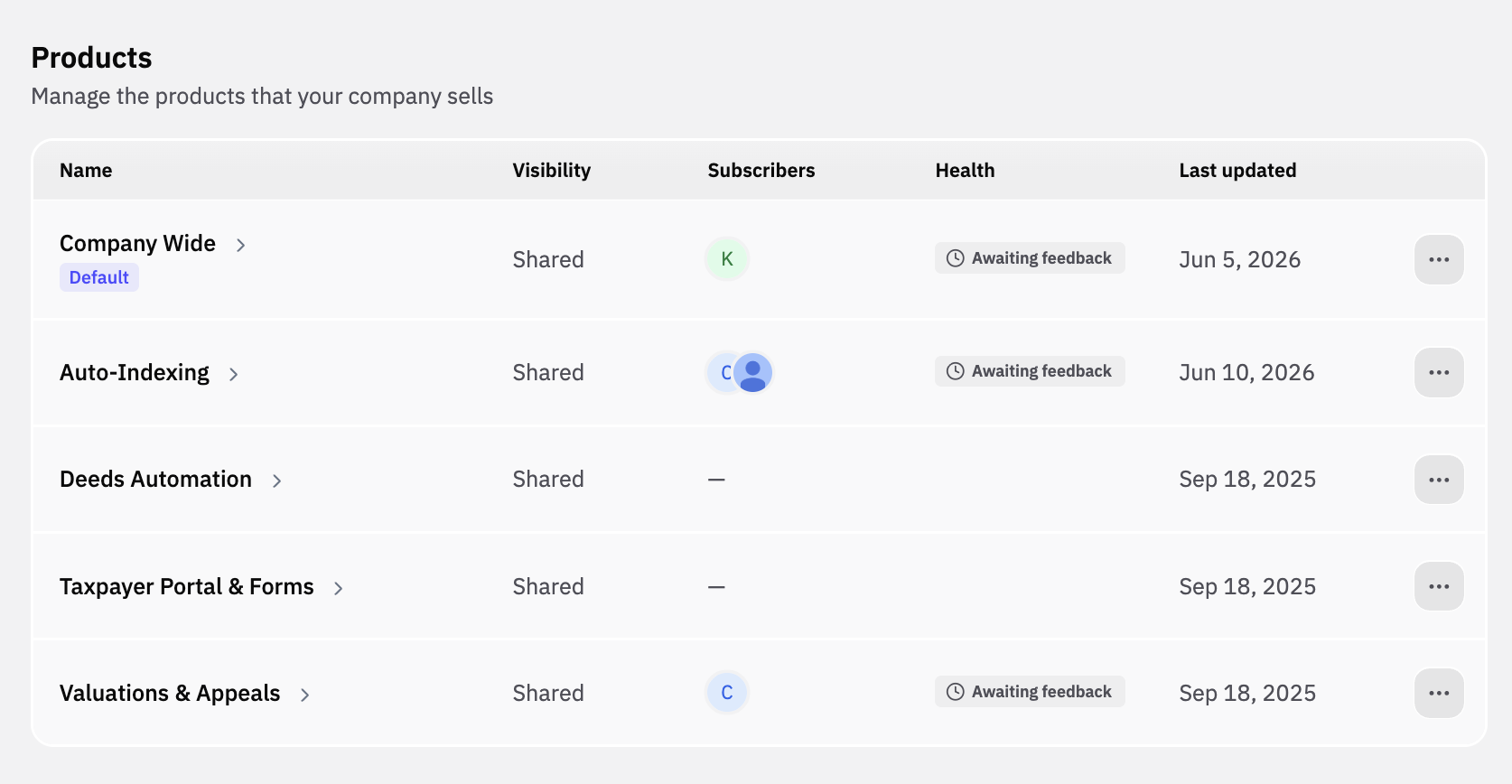
Did you know you see which users are subscribed to each profile so you can tell at a glance which profiles your team uses?
Creating a Product
Name — Keep it clear and recognizable (e.g., "Public Safety Analytics").
Visibility — Choose Share with all workspace members for most products. Use Private for experimental profiles.
Product Description — Describes what you sell and who you sell it to. Radar reads this description when it decides whether a government document is relevant to one of your signals, and Pursuit reads it again when it writes prospecting emails and Talking Points. A specific description produces more relevant signals.
Signal Criteria - A free text field to provide specific multi-word statements that directly point Pursuit's AI to the types of procurement, need, and or sentiment specific signals you most care about surfacing. Weight criteria differently based on what's most important.
Signal criteria are the primary driver of which signals are surfaced for the particular product profile.
Competitors - A space to provide a list of the competitors your company has specific to a given product or offering category. Pursuit will look for competitive mentions within the document and add a tag to the signal card with any competitors found.
Keywords — Add comma-separated terms that broaden the search beyond the prompt.
Writing a description Radar can use
Signal criteria tell Radar what kind of event to look for. Your product description tells Radar what you actually sell, so it can decide whether that event is an opportunity for you.
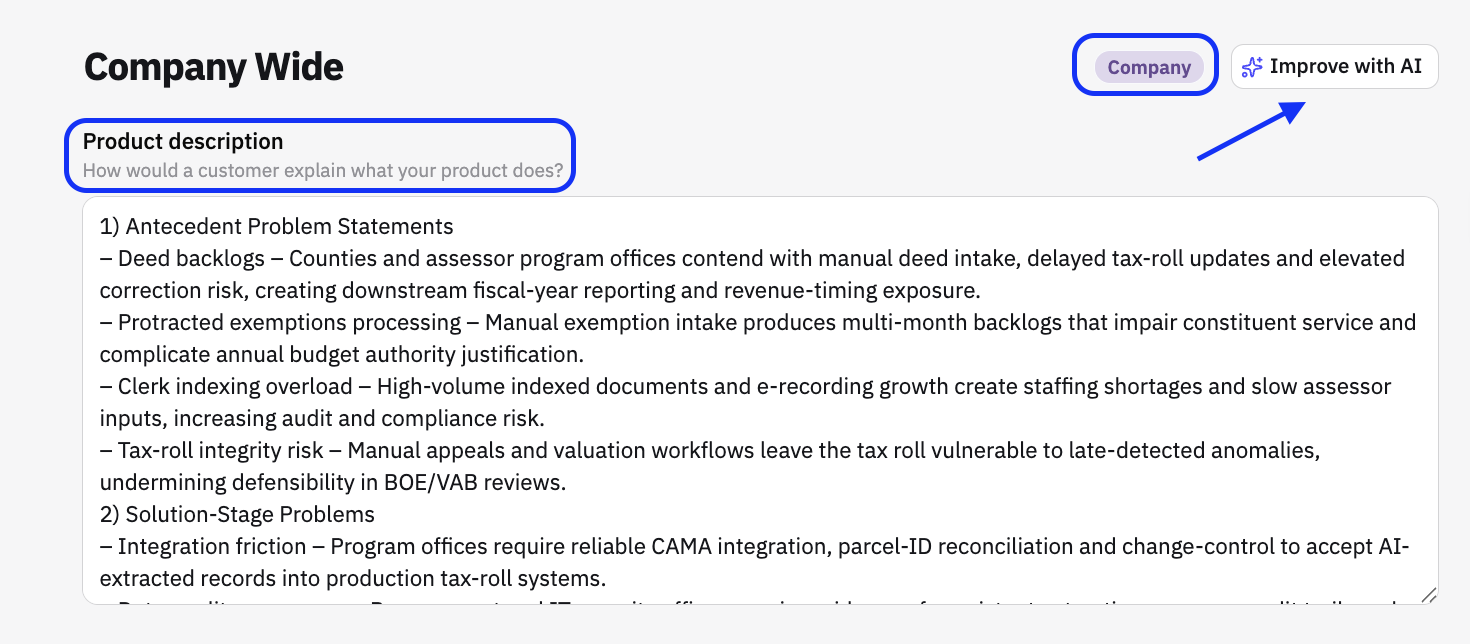
Consider a signal for a city that needs new PPE. If a city's hard hats are expiring, that is an opportunity when you sell hard hats and noise when you sell respirators. The criteria cannot tell those apart on their own. The description can.
Write your description so Radar can make that call:
Name the category you sell, in the words your buyers use
Name the products or product lines inside that category, not just the category label
Name the buyers you sell to, for example IT departments, procurement offices, or public works
State what makes your offering different when it changes which documents matter, for example a specific certification or contract vehicle
"Cloud-based fleet management for municipal transportation departments" gives Radar something to work with. "Fleet software" does not.
What success looks like
A higher share of the signals in your Radar inbox are worth acting on, without losing the ones you were already catching.
Assigning Priority to Signal Criteria
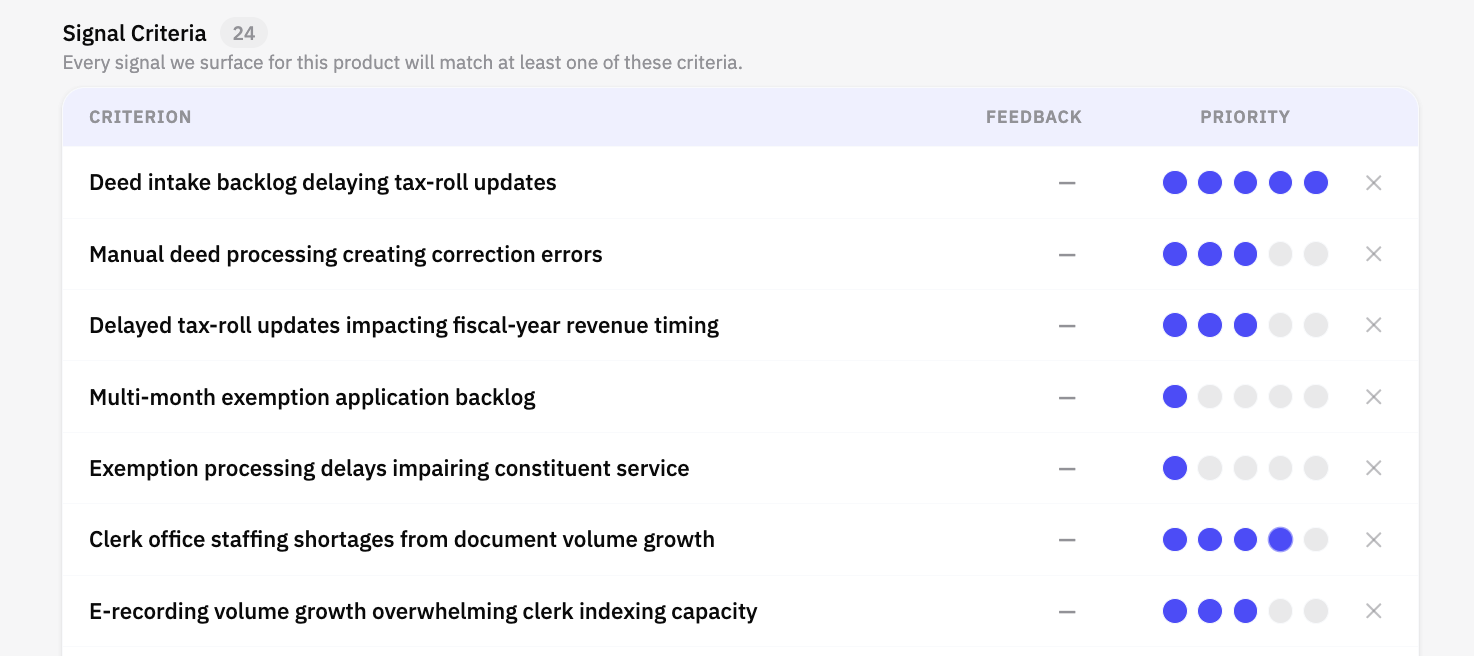
For each signal criterion, you can assign priority based on the most important influences to a deal.
Signal criteria that translate to sales qualified leads should have an attribution closer to 5
Less predominant signal criteria as they pertain to selling should have an attribution closer to 1
Managing Multiple Products
Signal feedback is a strong indicator of which signal criterion need tuning
3-8 products is a good range. One per distinct solution.
Don't over-fragment — 20 overlapping products create noise.
Check which products your reps actually select in their Radar profiles. Low adoption may mean the name or prompt needs work.
See 📄 Understanding Products in Pursuit for how products are used across the platform.