Using an Account List as a Radar Filter
Last updated: June 10, 2026
Whether you have your CRM integrated with Pursuit or not, you may want to take a list of accounts to use as a filter for signals or to find additional information on those accounts.
You can use a CSV of account names as a filter in Radar by utilizing the Data Enrichment area.
Start by reading more about data enrichment here: 📄 Introduction to Data Enrichment
Prepare your file
In your CSV file, ensure you have the following fields:
Field | Description | Inclusion |
Name | Name of the account / entity | Required |
State | State name or 2 letter abbreviation where the account / entity is based | Required |
URL / Website | The account's website (e.g. https://www.a2gov.org) This helps improve matching | Recommended |
Pursuit ID | Pursuit ID if previously matched | Recommended |
Additional fields that can help increase match rates include unique IDs such as:
FIPS code
NCES ID
IPES ID
ORI ID
Upload your account file
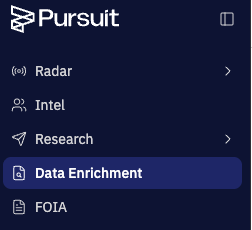
Click on Data Enrichment in the lefthand navigation
Click on New Data Enrichment in the top right corner
Click on Account Matching
Drag your file onto the page and click Next
Map your fields between how they're named in the CSV and the Pursuit system names

You can check on the status of the data enrichment by clicking back on Data Enrichment in the lefthand navigation bar.
You'll know it's ready once you see a new file entry with your enriched data.
Using Your Uploaded List as a Filter
You can use your newly uploaded file as a filter anywhere on the platform where you can filter for accounts.
For example: Use your list of accounts in Radar to filter signals for just those in your list.
On any account-level filter, open the Data Enrichment dropdown
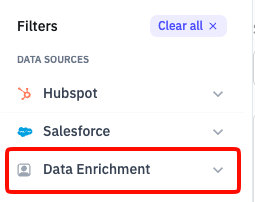
In the dropdown, either scroll to find or type the name of the file you want to use as a filter. Now you can easily find opportunity signals for your target accounts 🚀