Filtering Your Inbox Opportunity Signals
Last updated: June 9, 2026
On Inbox, you can easily filter your opportunity signals by a number of views.
Filter by signal profile
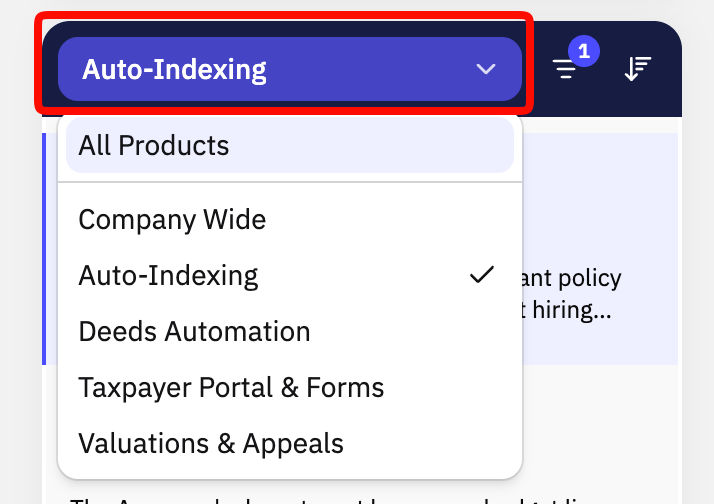
Selecting the product listings allows you to select which product(s) to see in your Inbox view. You can select as many products as you want by simply clicking on them in the dropdown, or click All Products to see all opportunity signals across all products.
Filter by signal status
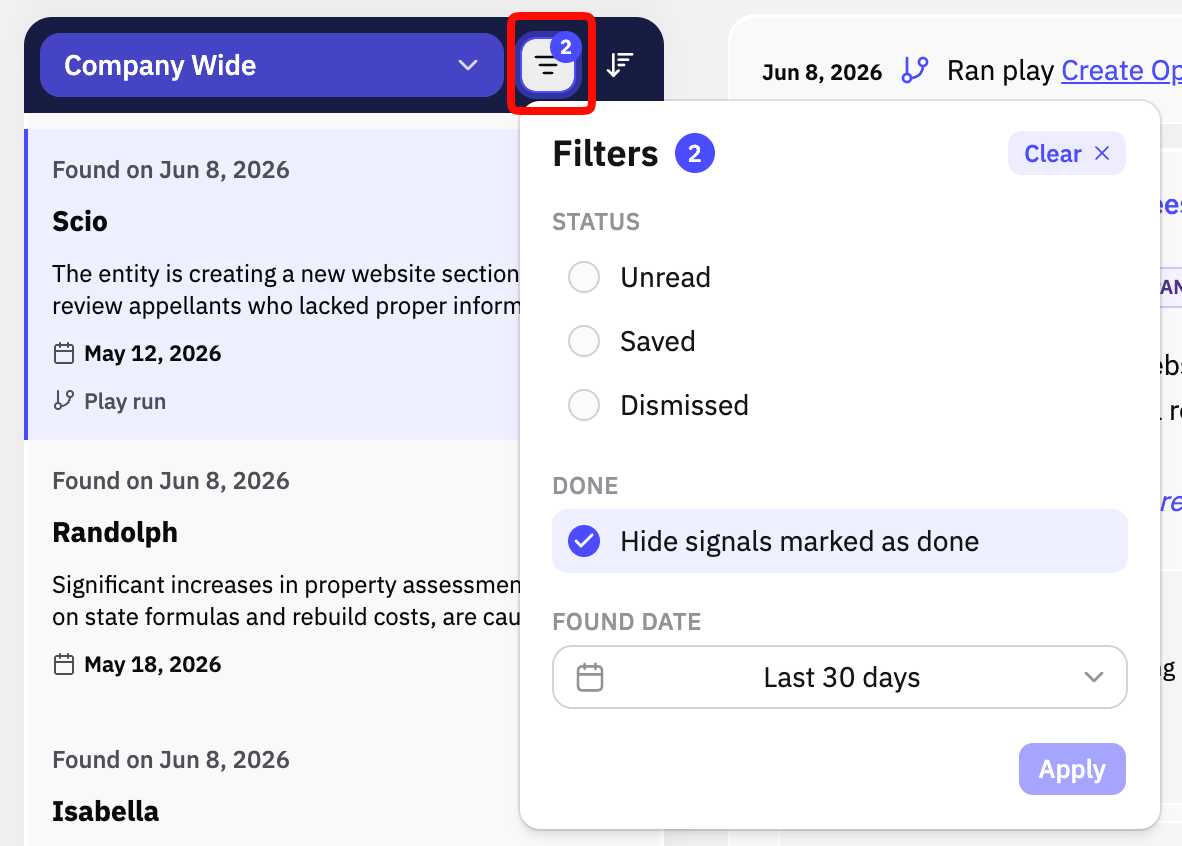
Switch between Inbox views based on signal statuses:
Unread - Switch to display only Unread signals (default)
Saved - Show all saved signals (using the save star icon (⭐) on the bottom of a signal card)
Dismissed - Show all dismissed signals (using the thumbs down icon (👎) on the bottom of a signal card)
If you want want to mark signals as done - an option other than starring or dismissing a signal - then enable the Hide signals marked as done
Filter by date
The Radar Inbox displays signals based on the date the opportunity signal was shared with you.
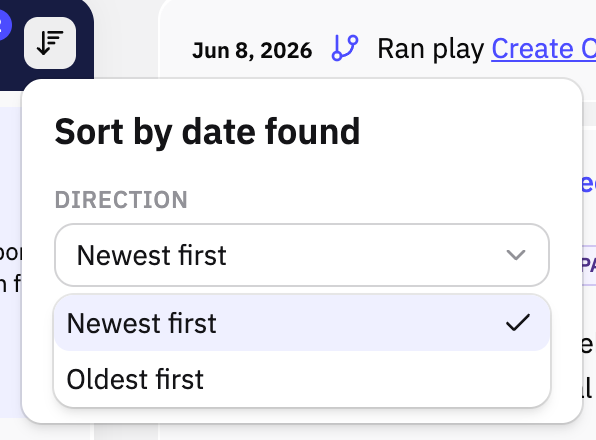
By default, Inbox shows you the newest signals on top. Clicking on the sort icon lets you flip between newest or oldest signals on top.