How to Save and Dismiss Signals from Explore Search
Last updated: August 7, 2026
When to Use This
Use this when you find a signal through a free-text search in Explore and want to act on it.
Before You Start
You need at least one product profile set up. Every signal you save or dismiss is filed under one of your products, so a typed search has to be tied to a product before you can act on the result.
Steps
Open Explore and run a free-text search for the keyword, agency, or program you're chasing.
Find a result you want to keep and click Save.
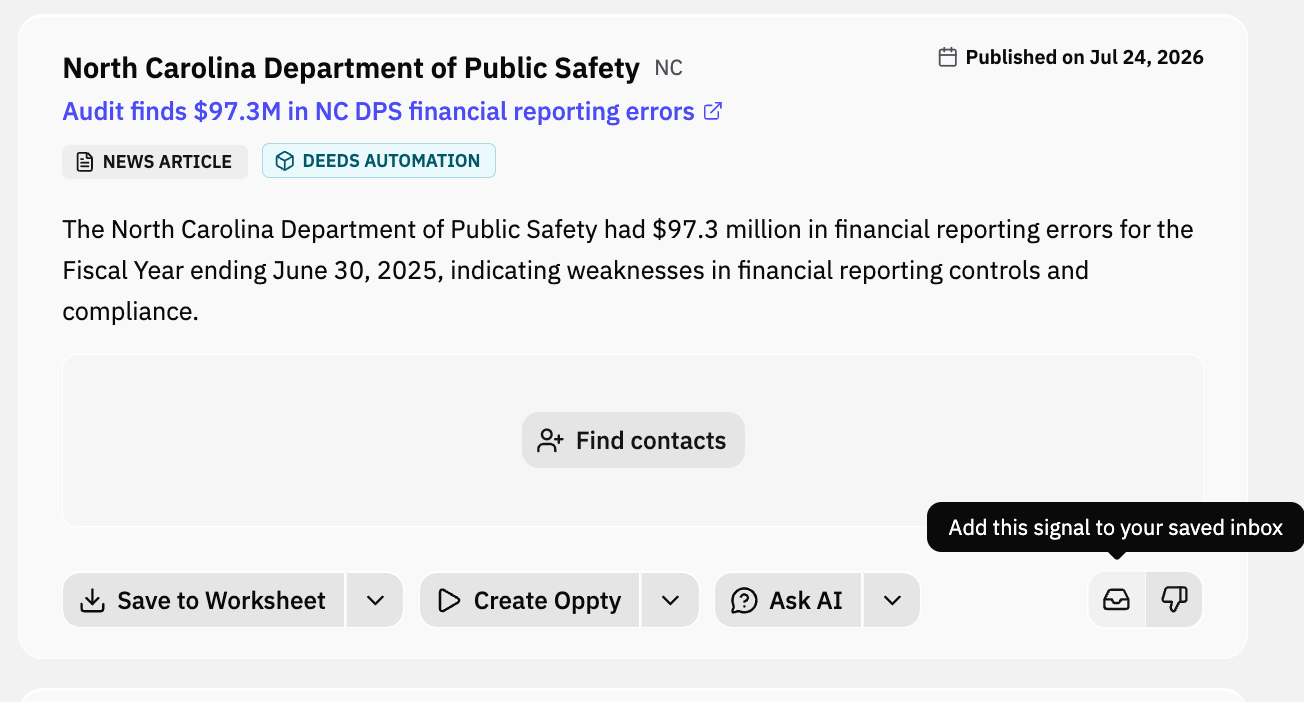
Choose which of your products the signal belongs to. The signal lands in your saved inbox under that product.
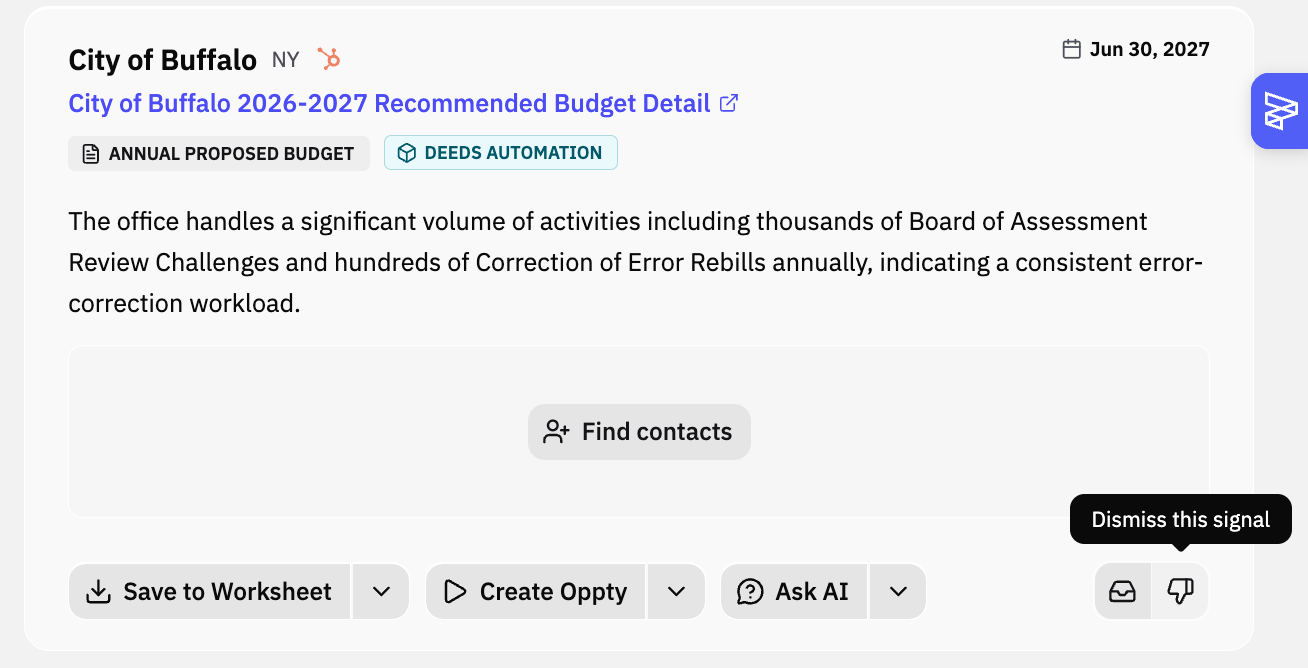
To clear a result you don't want, click Dismiss on it.
What Success Looks Like
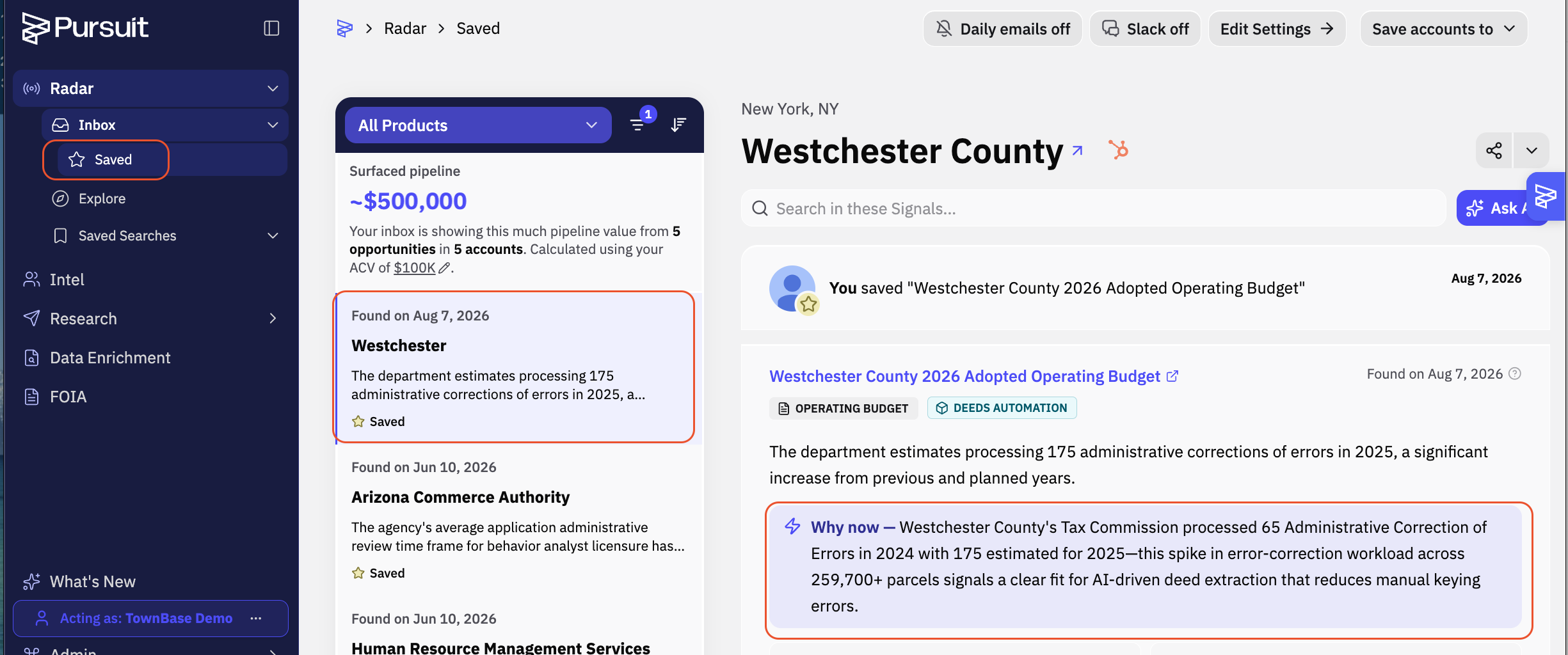
The saved signal appears in your inbox under the product you chose. Shortly after, it fills in with a "why act now" rationale and suggested contacts, the same context a signal gets when Radar surfaces it automatically.
Common Issues
Problem: A signal you just saved comes in bare, with no rationale or contacts. Fix: Give it a moment. The rationale and suggested contacts attach shortly after you save, not instantly.