Browsing Signals in Explore
Last updated: September 25, 2026
The Explore tab allows you to define whatever filter criteria you want in order to find the relevant signals. Explore enables you proactively look for opportunity signals that meet your needs.
Want Pursuit to do the searching for you? Configure your Radar Inbox, here:
What You'll See
Search Results Scope
At the top of the search results panel, you'll see information about the scope of the opportunity signal results returned.
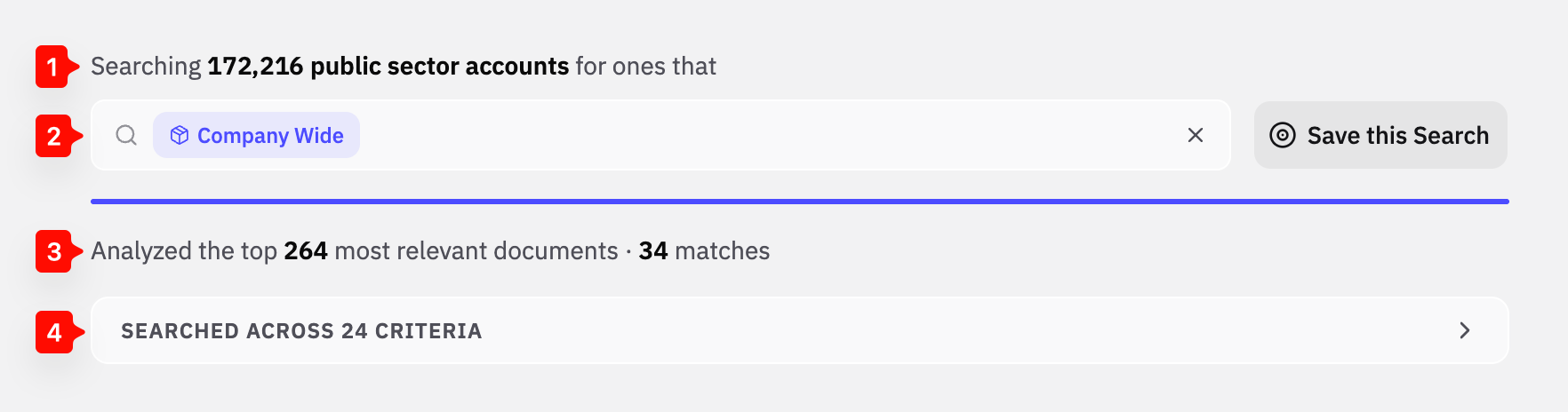
Indicates the number of accounts searched (e.g. if you apply search filters you'll see the number of accounts that match that filter criteria)
Your search criteria (e.g. either a product profile, saved search, or keyword(s))
The scope of documents and total number of opportunity signals returned to review
This dropdown shows you the specific search criteria searched within the account filter criteria
Opportunity Signals
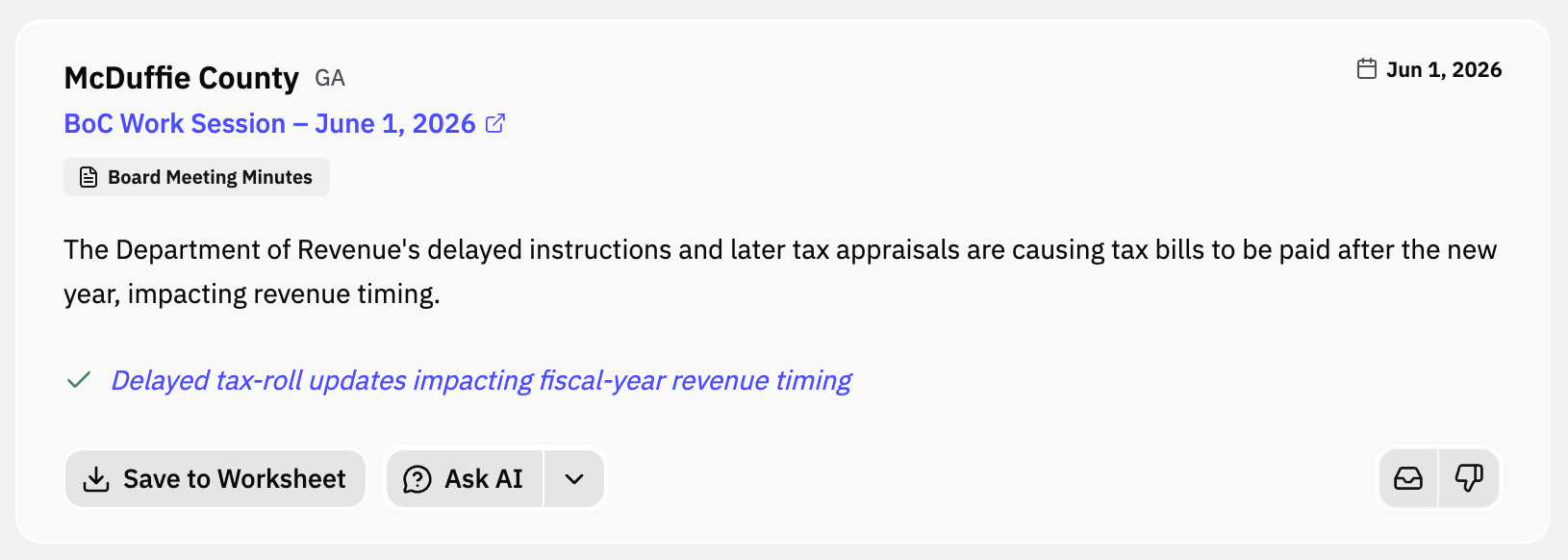
Each card includes the account name, an AI summary, the source document type, and action buttons
Filtering Your Feed
Filters are in the left sidebar and work across all three Radar tabs:
CRM filters: HubSpot, Salesforce, or Dynamics properties such as Account Owner or Territory. Select more than one value to include accounts that match any of them
Custom Filters — Organization-defined filters like Authority Level and Persona.
Date Range — Focus on signals from a specific time period.
Entity Type — Narrow to cities, counties, school districts, etc.
Data Enrichment Sources — Show signals only for entities in your uploaded files.
Separate filters combine: each one you add narrows the results. Values inside a single filter expand them. Selecting two account owners shows accounts owned by either one
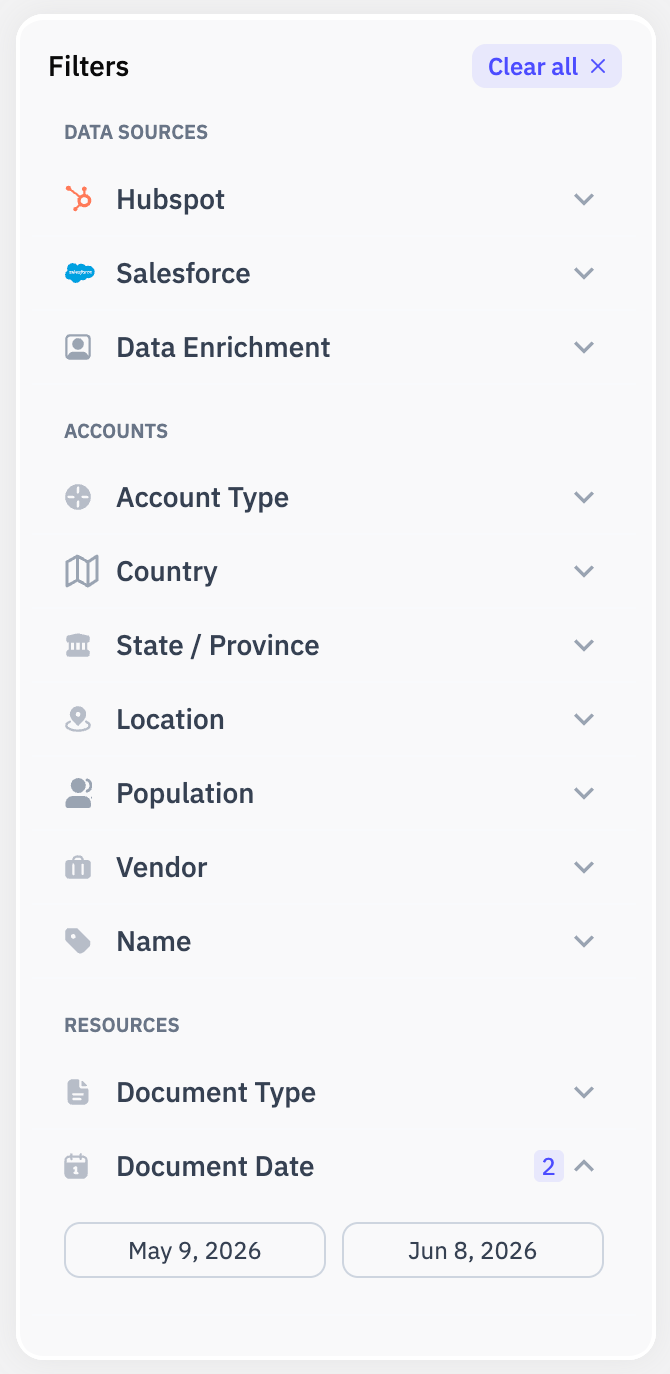
You can save your search criteria to pick up where you left off or revisit your opportunity search next time.
Qualifying or Taking Action on a Signal
From any signal card, you can:
Save — Add to your Saved tab for tracking
Dismiss — Remove from your feed (also trains the AI)
Add to Worksheet — Pull the entity into a workbook for deeper analysis. See Introduction to Research.
Ask AI or Run a Play — Qualify or take action on a signal (e.g. send a prospecting email or create an opportunity in your CRM) without even leaving the signal card
Save your Search
You don't have to recreate your search filters every time you need them. Once you have filtered your search results, click 'Save Search' in the upper-right corner of Radar.
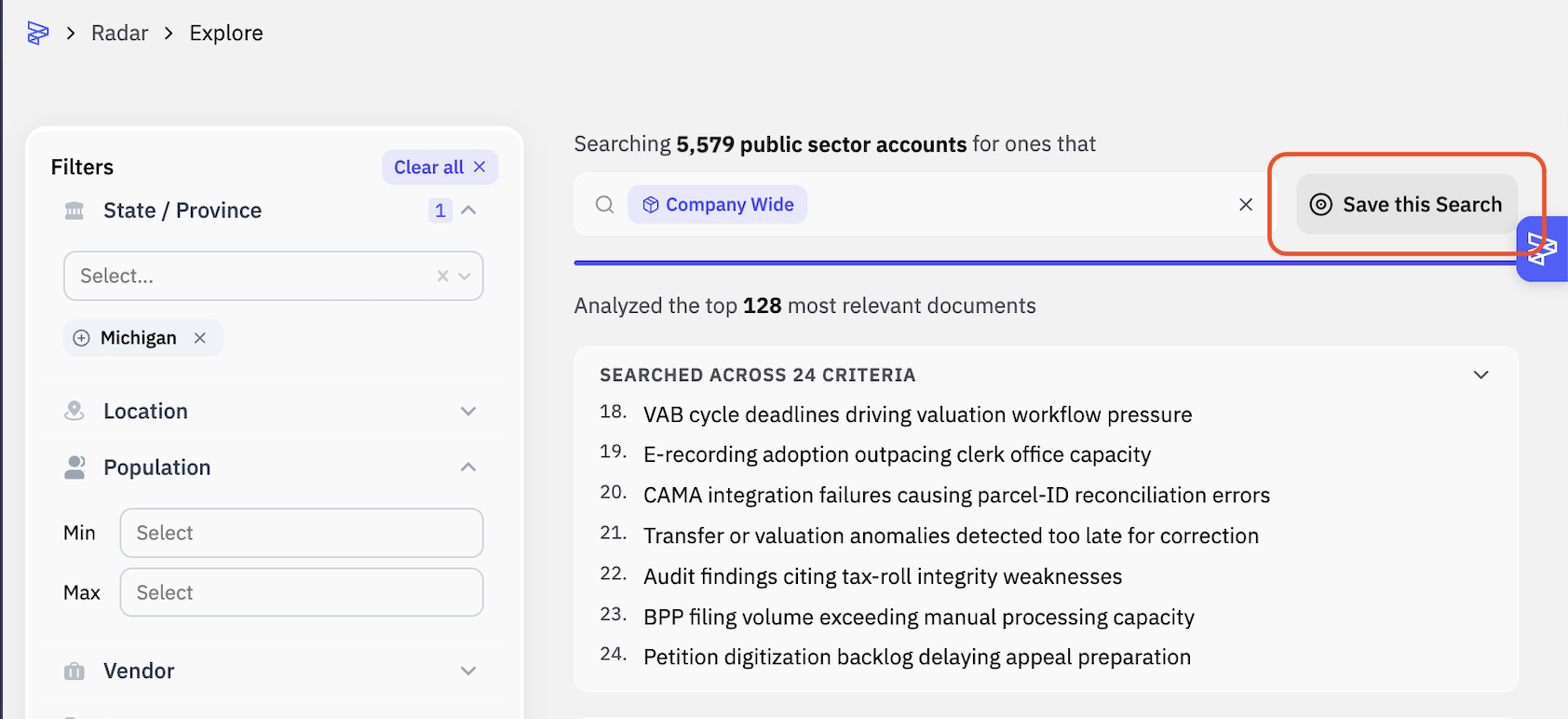
Learn how to automatically export Radar Search results to your CRM here: 📄 Sync Saved Search Results to Your CRM from Radar