Using Account Research and Account Scores in Your CRM
Last updated: July 31, 2026
Prerequisites
You have already successfully connected Pursuit to your CRM
You have created the research and account scoring fields in your workbook
Using the Pursuit Chrome Extension, you can also decide to pin research question columns to the Chrome Extension. Those insights will appear when a user is on the CRM account page, and let you maintain key insights directly in your CRM while still allowing your users to see additional insights on the Chrome Extension
Prepare your CRM
Decide which field(s) will live in your CRM
You can decide on as many or as few from your workbook that will live in your CRM
Work with your CRM administrator to create the appropriate fields
Each research prompt and account scoring field can either:
be published as a combined field - including both numeric score and reasoning/sources); or
split into 2 independent fields (1 column for numeric score and 1 column for reasoning)
For example, in the case of account scoring,
Combined Data export - includes both the numeric score and reasoning in a single field in your CRM
Individual Data export - will map to one CRM property for the numeric score and a different CRM property for the reasoning
The export mapping is done for each column of your workbook to give you maximum flexibility.
Mapping your workbook columns to your CRM
In your research workbook:
Click Save to... in the top right corner
Select your CRM from the dropdown
On the
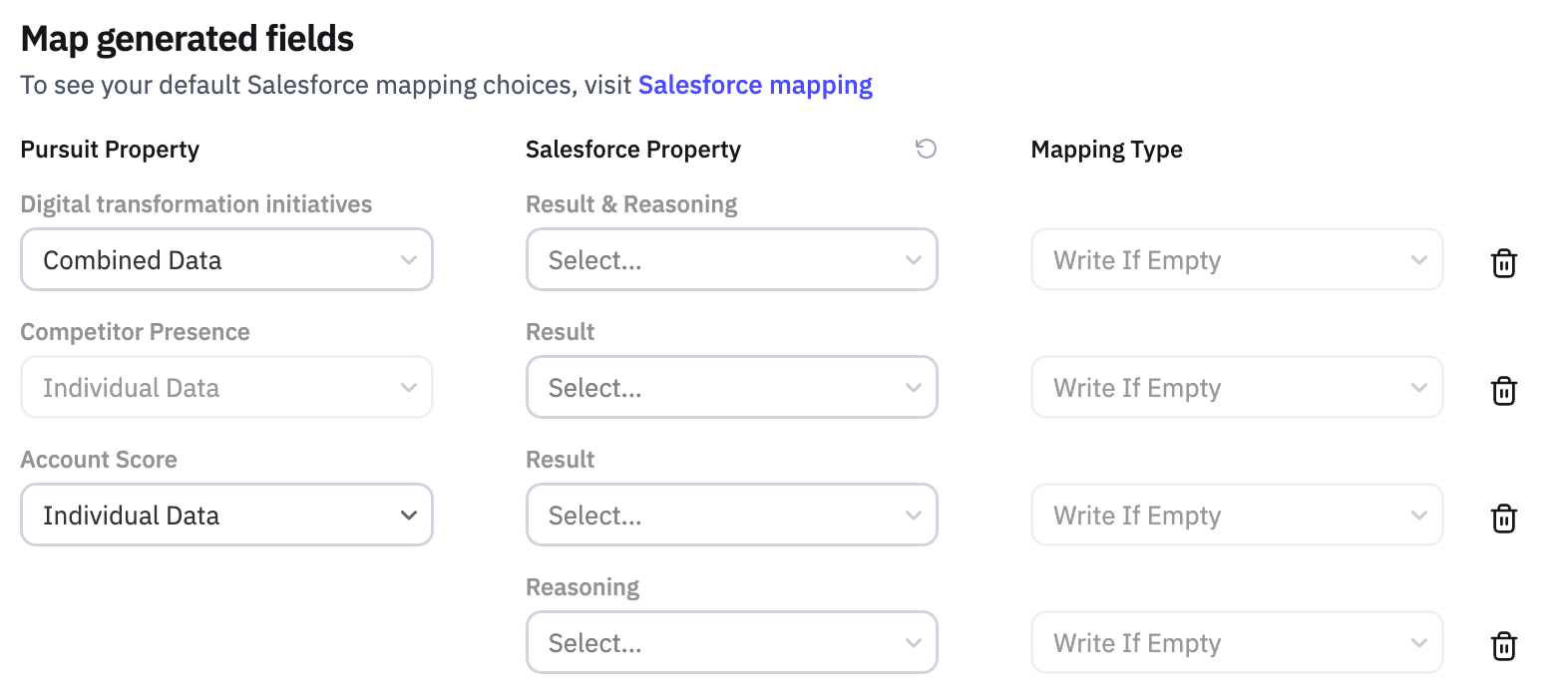
Map generated fieldsmodal, configure each of the fields in your workbook to their respective CRM properties
Data | Purpose | Notes |
Pursuit Property | Worksheet column name | Used to select if you want the data as a combined value or individual values (to be mapped to 2 fields in your CRM) |
CRM Property | Select the corresponding CRM property / field to map the worksheet column(s) | If you selected "Individual Data" in the Pursuit Property then you will be shown the option to select where the response results vs. reasoning results are mapped |
Mapping Type | Indicate how Pursuit data should write to the CRM property |
Select |
Trashcan | Clears the mapping configuration for that property |
If you do not want a specific worksheet column to map to a CRM property, simply leave the CRM Property and Mapping Type values empty for that row
Exporting your worksheet insights to your CRM
First Export
Once you are finished mapping the fields, click on the Export Accounts button at the bottom of the field mapping modal
Manual CRM Updates
If you want to manually update the CRM properties with the insights from your worksheet, simply follow the same steps.
Automatic CRM Updates
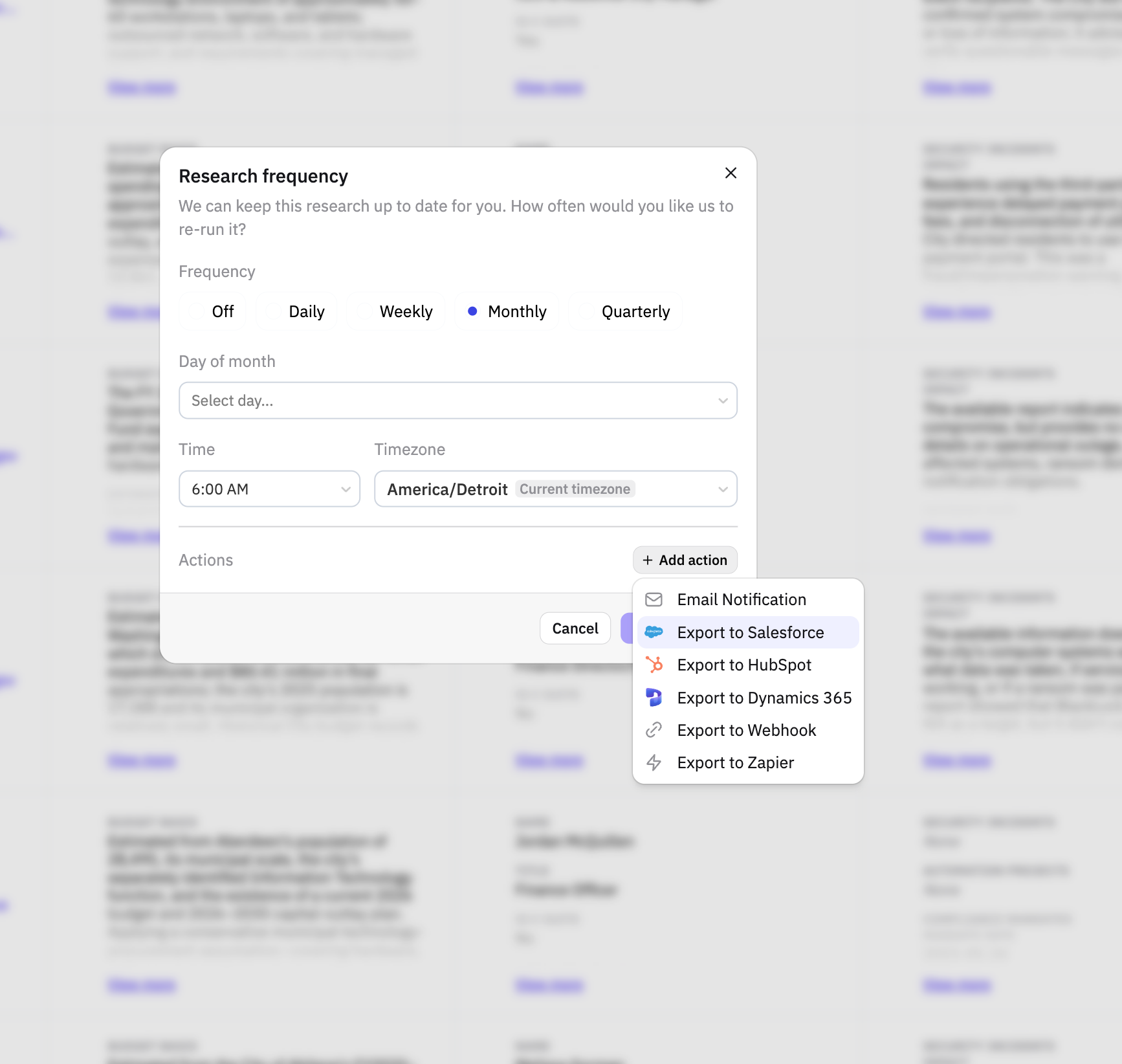
As different research queries may be updated at different intervals (e.g. annual budget is only updated once a year vs. you may want to update leadership changes quarterly), each column can have its own update cadence.
Simply configure the scheduled updates at the column level, and select the CRM update action to ensure the latest insights are pushed automatically to your CRM at the cadence of your choice.