Creating a Custom AI Prompt
Last updated: August 14, 2026
Get started building your worksheet, here:
📄 Creating Your Research Worksheet
Custom AI prompts unlock deep research to answer your most critical questions; whether you're gathering insights for territory planning, looking at budget and funding trends across accounts, or building out an outreach or nurture campaign.
Step 1: Add an AI Column
You can use Custom Prompt for the widest range of AI model results to be returned - from bullet points to any length of text result to tables.
Inside your worksheet
Click Add AI Column
Select Custom Prompt
Step 2: Create your prompt
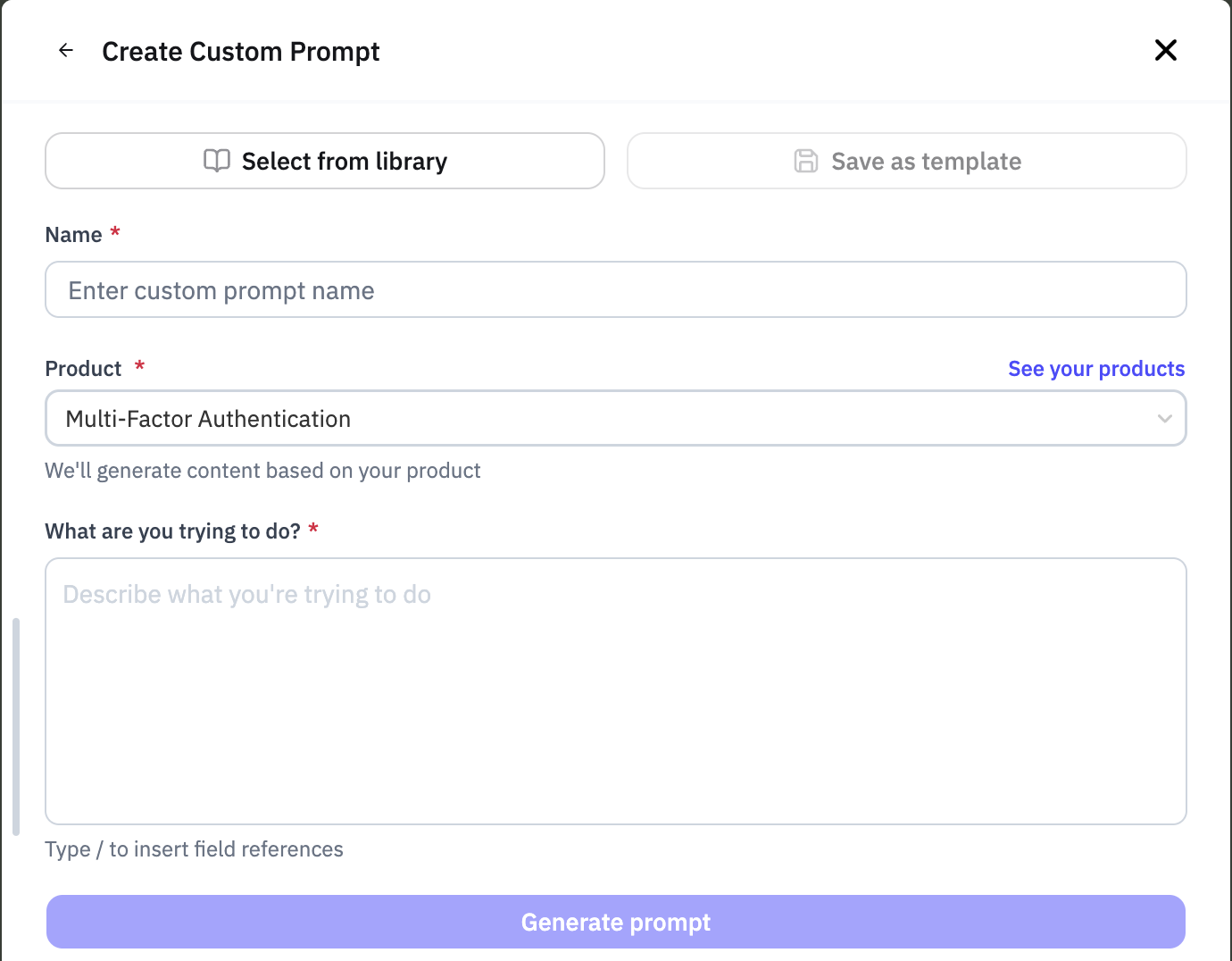
Name: Give your prompt a meaningful name but the full name of your research query
e.g. If you are interested in the account's Multi-factor Authentication (MFA) compliance, you could name your field "MFA Compliance"
Product: Select the product profile you want to search against. This helps inform the model about what to look for when returning results.
What are you trying to do? You do not need to be a prompting wizard. Just as though you are chatting with any AI chatbot, tell it what you're looking for. Pursuit will take that and return a structured prompt for you to review.
e.g. "I want to know about whether there are any MFA compliance deadlines coming up and if they are on track to meet those deadlines."
Click Generate prompt
Step 3: Adjust and test your prompt
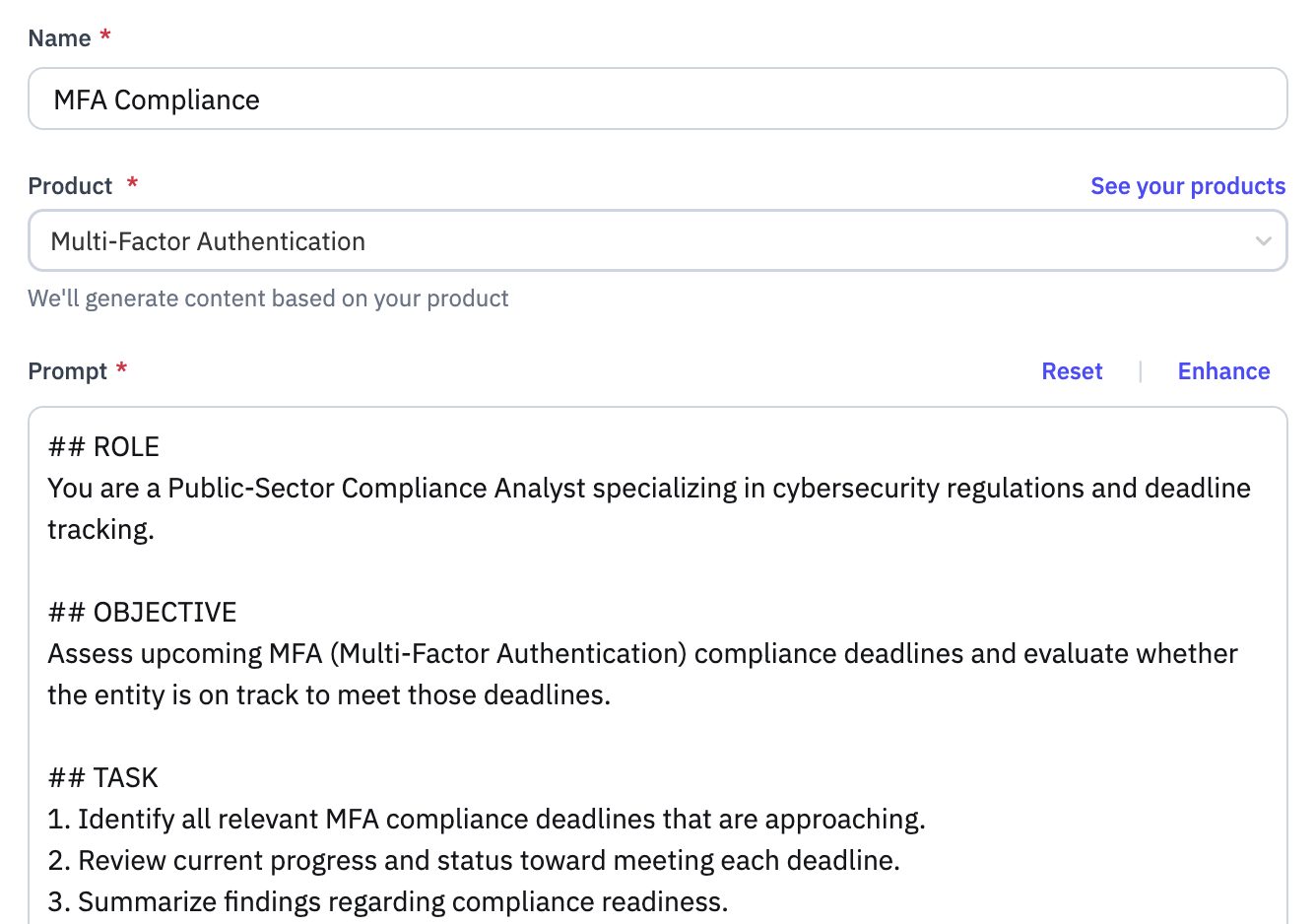
Once you click on Generate prompt, you will see the Pursuit-generated prompt based on what you are looking for.
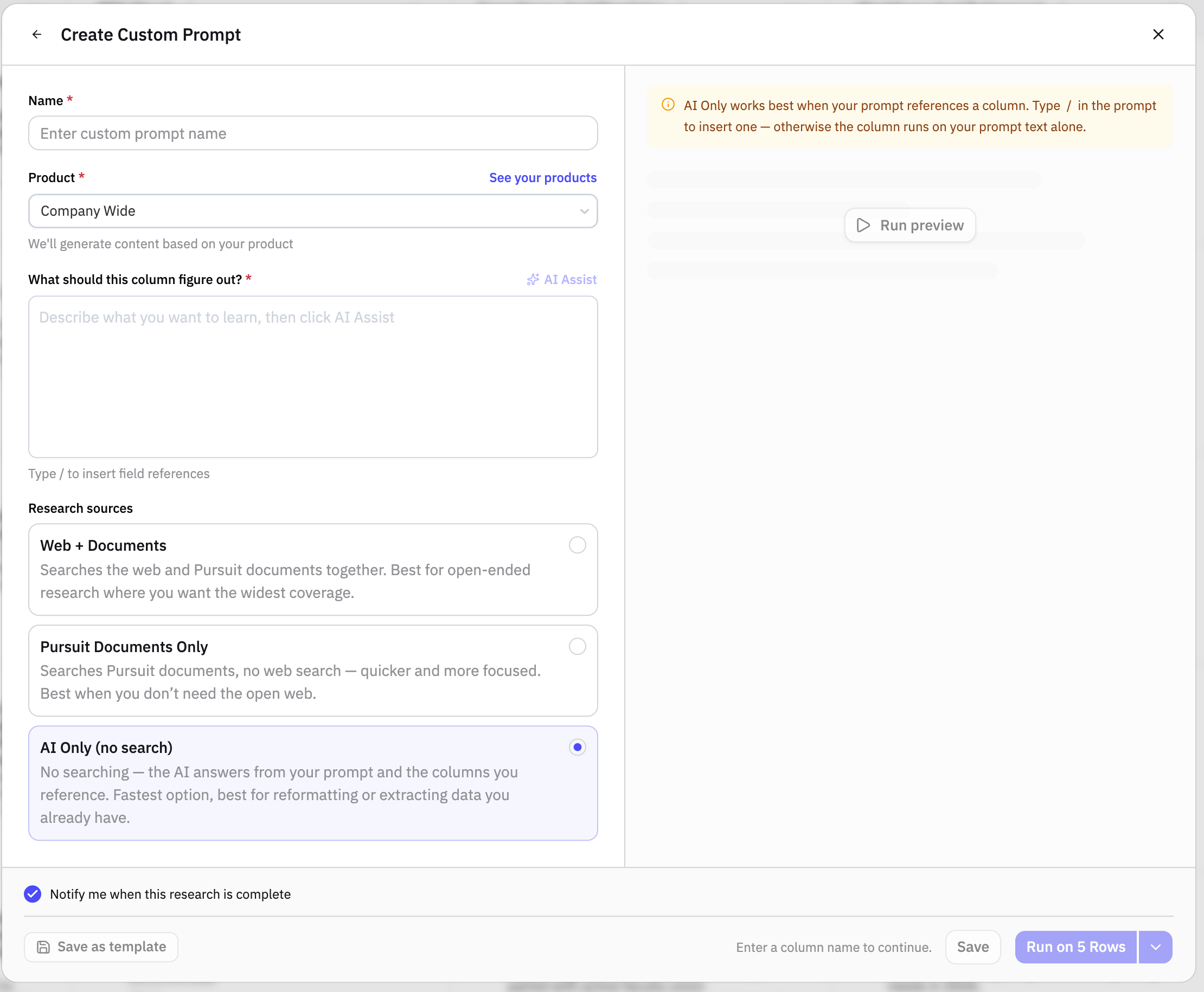
Every custom prompt column has a Research sources setting that controls where the column looks for its answer:
Web + Documents (default): pulls from the open web and your Pursuit documents
Pursuit Documents Only: answers from your trusted documents only, with no web
AI Only: does no searching at all; the AI works only from the other columns in your sheet
Use AI Only when you want the column to format, clean up, or build on data you have already gathered, without pulling in unrelated results from the web. It is fast and predictable, which makes it a good fit for turning raw column data into a specific output.
Review the Prompt
You can make any adjustments to the prompt before running it by editing directly in the text area.
Look over the newly structured prompt to make sure it matches the role and objective of your research question
Check on the tasks to adjust anythign you think should be modified, added, or deleted
Finally, look over the output structure and make sure it gives you the results format that is most useful to you
For example, rather than 1 or 2 paragraphs, you can tell it to return a 100 word summary
Once you're happy with the prompt you can leave it as is or click Enhance right above the text area to run the prompt creation wizard again.
Parent account insights are included by default
Reporting across public sector entities sometimes sits across different accounts. For example, information about public safety related funding may sit at the individual police department or fire department, but likely that information is also reported out at the city or county level.
By default Pursuit will analyze across both the account and its parent organization to ensure the most comprehensive insights are returned.
If you do not want to include the parent entity, simply un-check the box

Step 4: Run your prompt

Determine if you want to be notified when your research is ready
You will set this at the individual research prompt level, not across the entire worksheet
Given the breadth and depth of Pursuit's AI research, it is recommended leaving this box checked
First Try on 5 rows
Run your prompt on 5 rows as a sample first. This allows you to ensure your prompt is returning the kinds of insights you are looking for, and that the format of those results is what you want.
Once you've reviewed the results (see below) you can come back into the prompt and Run on all rows
Step 5: Review your initial results
Back in your worksheet, your results will start populating in the cells as the research results are returned. Depending on the complexity of your question, this may take a few minutes to return.
To review your results:
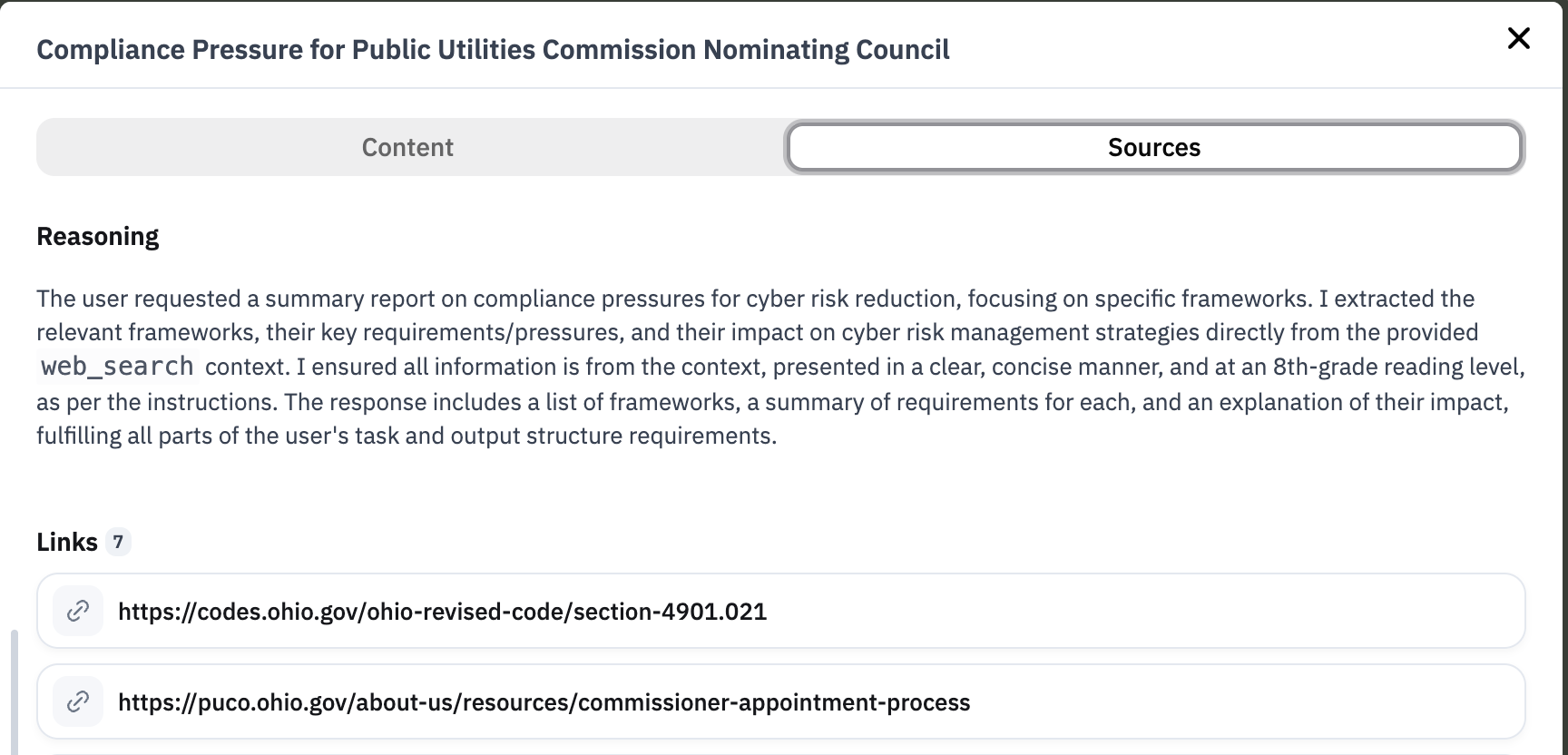
click into any populated cell
On the Content tab is the search result for that entity in the format you described in the prompt
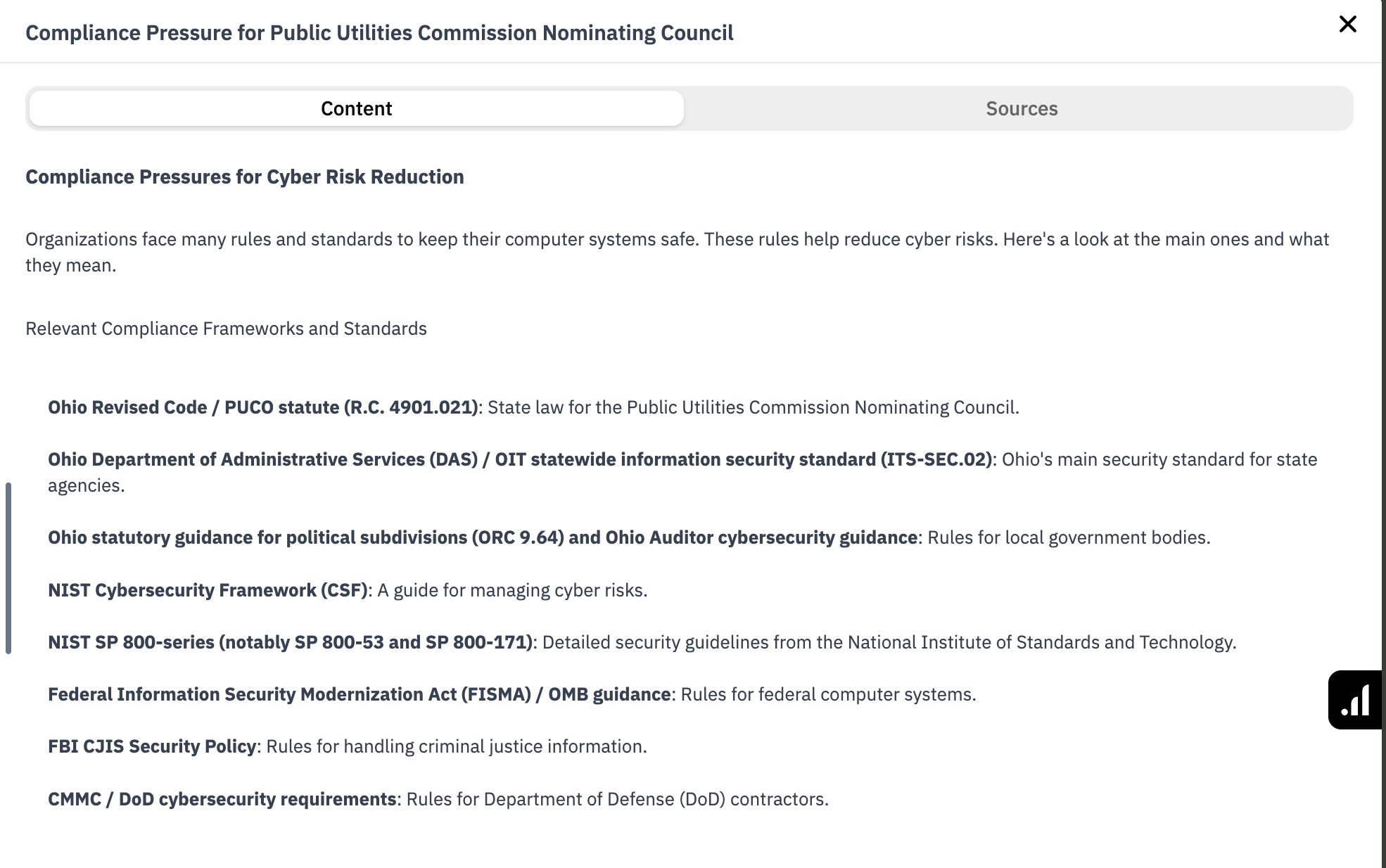
The Sources tab shows the reasoning and links to the documents used for that row. Research searches dozens of candidate documents per run, so expect several sources on a well-scoped prompt. See Where does Research get its answers? for how the document store and the web are used
Step 6: Adjust your prompt and/or run it on all rows
Click on the 3 dots next to the field name in the worksheet
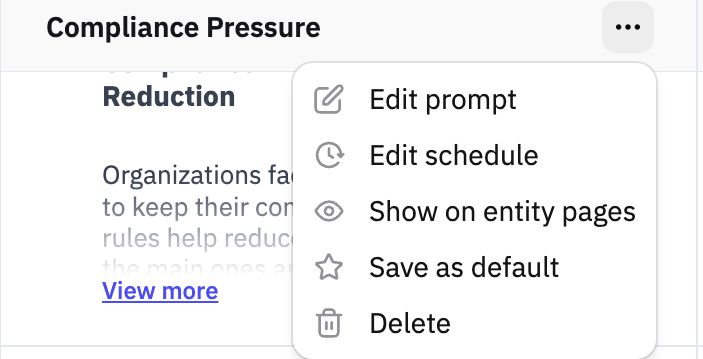
Click Edit prompt
Once back in the prompt editing screen from earlier, make any adjustments you need to the prompt and test again on 5 rows.
If you're ready to run it on all rows, click the Run on all rows button

Now that you are running it on all rows it will take time to return results based on the number of rows (entities) and complexity of the research question.
Ensure you have the Notify me when this research is complete checked, and continue working on another research prompt or come back to the sheet later once you are notified.