Finding Nearby Customers
Last updated: February 14, 2026
Nearby Customers is an AI column type that identifies existing customers from your CRM who are located near each entity in your workbook. This is especially powerful for territory planning and outreach — when you can reference a nearby customer who is already using your product, it gives your sales team a concrete proof point and a natural conversation opener.
Adding a Nearby Customers Column
To add this column to your Research workbook:
Click Add AI Column in the workbook toolbar.
From the menu, select Nearby Customers.
This opens the configuration panel.
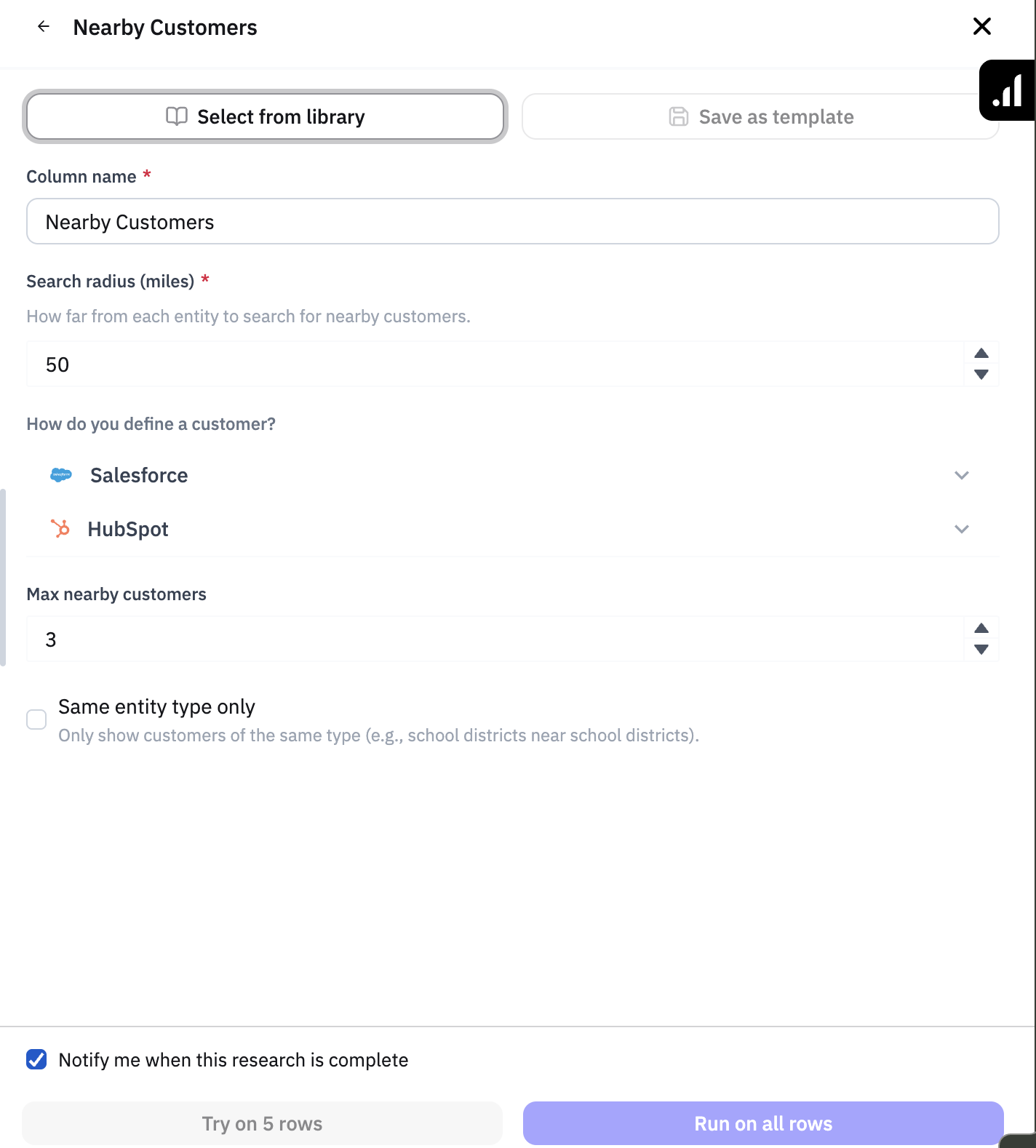
Configure the Column
Column Name
The Column name field defaults to "Nearby Customers," but you can rename it to something more descriptive for your workflow. For example, "Neighbors Within 50mi" or "Local References."
Search Radius
The Search radius (miles) field controls how far from each entity the system will search for customers. The default is 50 miles, but you can input a range up to 500 miles.
The radius is measured from the centroid of each entity's location. If you're working with densely populated areas, a smaller radius (10–25 miles) may return plenty of results. For rural territories, you may need to expand to 100 miles or more. Start with a modest radius and adjust after reviewing your initial results — it's easy to re-run the column with a wider search area if your first pass returns too few matches.
Define What "Customer" Means
This step is critical because it determines which accounts from your CRM are used as the reference set. The system will only surface accounts that match the field and value criteria you configure here.
Under How do you define a customer?, you'll connect to your CRM to tell the system which accounts qualify as customers.
If you don't have a account type (or similarly named field) showing, your Pursuit admin can easily add that in the Integrations section of the Pursuit platform.
Customer Field: This maps to the field in your CRM that defines an account (or company) type. For example: "Account Type"
Customer Values: This field dynamically populates based on the whatever values are in your CRM that you mapped to "Customer Field". Select the value(s) that map to the accounts in your CRM that you want to see their proximity to the entities in your Research worksheet.
Set Your Max Nearby Customers
The Max nearby customers field limits how many results appear per entity. The default is 3, but you can increase it if you want a more comprehensive list of nearby references.
Same Entity Type Only
The Same entity type only checkbox filters results so that only customers of the same entity type appear.
For example, if you're looking at a Police Department, enabling this option will only show other Police Departments from your CRM, not counties, school districts, or other entity types.
This is useful when your sales team needs references that are directly comparable to the prospect.
Turn it off if you'd rather see all nearby customers regardless of entity type.
Templates and Library
As with other AI columns, you can use Select from library to load a saved configuration, or Save as template to save your current settings for reuse across workbooks.
Running the Column
Once your configuration is set:
Toggle on Notify me when this research is complete if you'd like an email notification.
Click Try on 5 rows to test on a small sample first.
Review the initial results — check that the customers surfaced are accurate and that the radius feels right.
Adjust the radius or customer definition if needed, then click Run on all rows.
Reviewing Results
Click into any cell in the Nearby Customers column to see the detail panel:
Content: Lists the nearby customers found within the specified radius
Sources:
Indicates how many total entities from your CRM were found within the radius (e.g. you may only want 5 results but the actual number that fit your criteria is 10)
You can also click on an entity name and go directly to their entity page in Pursuit so you can find more detailed information about them
If a cell returns no matches, it typically means there are no CRM accounts matching your customer definition within the specified radius. Try expanding the search radius or broadening your customer field values.
Tips for Finding Nearby Customers
Start with a moderate radius (25–50 miles) and expand if results are sparse
Enable "Same entity type only" when your team needs apples-to-apples references for prospects
If your CRM has multiple fields that could indicate a customer relationship, test which one gives the most accurate results
Combine Nearby Customers with the Generate Talking Points column to automatically create outreach that references local proof points