Find Competitor Contracts
Last updated: July 20, 2026
Find Competitive Presence as part of your AI-powered Research
In Research, Find Competitor Contracts is an AI column type that automatically searches for contracts your competitors hold with each entity in your workbook. Instead of manually digging through procurement records and purchase order databases, this feature does the research for you — surfacing where competitors have existing relationships so you can plan your outreach accordingly.
Adding a Competitor Contracts Column
To add this column to your workbook:
Click Add AI Column in the workbook toolbar.
From the menu, select Find Competitor Contracts.
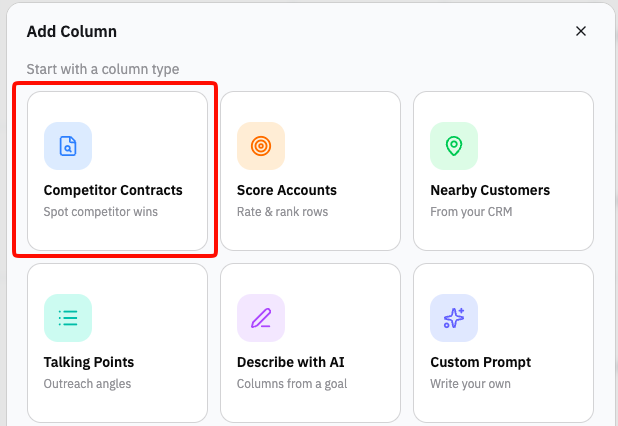
This opens the configuration panel.
Configuring the Column
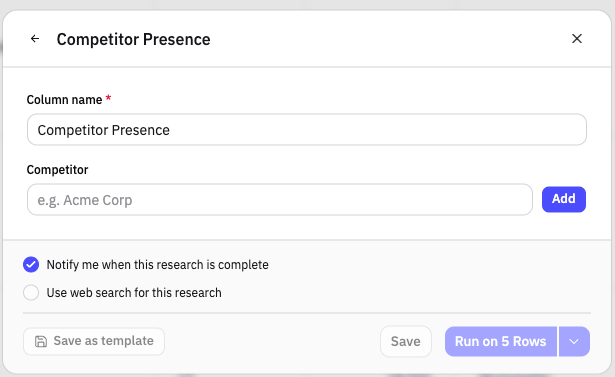
Column Name
At the top of the panel, you'll see the Column name field. By default it may be pre-filled with "Competitor Presence," but you can rename it to anything that fits your workflow — for example, "ACME Co Contracts" or "Competitor Footprint."
Adding Competitors
The Competitor field is where you enter the names of the companies you want to search for.
Type a competitor name and click Add to include it.
You can add multiple competitors, and the AI will search for contracts associated with any of them across your entities.
The Product filter lets you narrow down the search to specific products.
Try experimenting with leaving it as "any" to get the broadest search vs. specific products. Some data sources may only refer to the company name rather than the specific product.
Be as specific as possible with competitor names. If a competitor goes by different names or abbreviations, consider adding each variation as a separate entry to improve coverage.
Running the Column
Once you've entered your competitor names:
Toggle on Notify me when this research is complete if you want an email notification when results are ready.
Click Try on 5 rows to test the column on a small sample of entities first.
Review the results for accuracy and completeness.
If you're satisfied, click Run on all rows to process the full workbook.
Reviewing Results
Once results are populated, click into any cell in the column to open the detail panel:
Content — Shows the competitor contracts found for that entity, including contract details, dollar amounts, and timeframes where available
Sources — Lists the documents, procurement records, and public data sources the AI used to identify those contracts
If a cell is empty or shows no results, it means no matching competitor contracts were found in the available data for that entity.
Tips for Finding Competitor Contracts
Add multiple variations of competitor names (e.g., "Acme Corp," "Acme Corporation," "ACME") to improve search coverage
Start with your most important competitors and add more in subsequent runs
Use the "Save as template" feature to standardize competitor tracking across your team's workbooks
Combine this column with Account Scoring to factor competitor presence into your prioritization model