Getting Started with the Pursuit Chrome Extension
Last updated: June 9, 2026
The Pursuit Chrome Extension gives you access to entity data, contacts, and opportunity signals without leaving the page you're on. It works on government websites, in your CRM, and on the Pursuit platform.
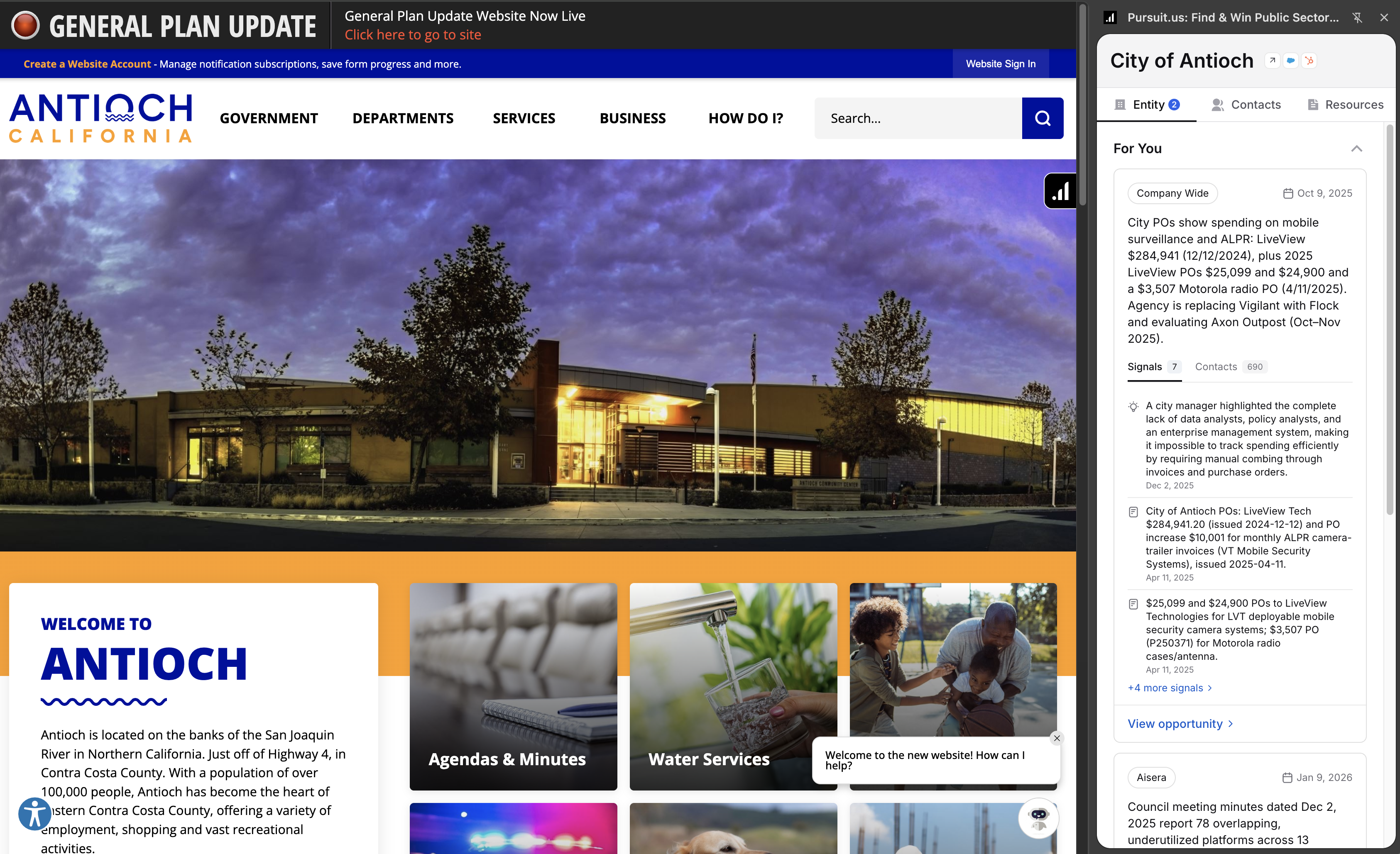
Install the Extension
Go directly to the extension on the Chrome Web Store (or go to the Chrome Web Store and search for "Pursuit.us")
Click Add to Chrome, then click Add Extension in the popup.
Refresh any open tab. The Pursuit button will appear on the right side of the screen.
Sign In
If you're already logged into Pursuit in your browser, the extension picks up your session automatically. Otherwise, click the Pursuit button to open the side panel and hit Sign In. Log in on the Pursuit website and the extension will be ready when you come back.
The Side Panel
Click the Pursuit button on the right edge of any page to open the side panel. The button is draggable if you need to move it out of the way.
The side panel has three tabs:
Entity: Firmographic details and buying signals for the entity. Useful for quick prep before a call or meeting without having to open Pursuit separately.
Contacts: The full list of contacts for the entity. You can search by role or department (e.g., "IT Director") to quickly find the people you need to reach.
Resources: Technologies the entity currently uses, relevant documents, purchase orders, and procurement thresholds. This gives you context on their current stack and where they are in a buying cycle.
Automatic Entity Detection
When you visit a government website (e.g., a2gov.org) or the account page in your CRM, the extension recognizes the entity and loads Pursuit's data automatically. No need to search, the side panel updates as you browse.
Inbox: Opportunity Signals in the Extension
If you have Inbox configured in Pursuit, the extension displays any surfaced signals in the side panel for the entity.
If you need to set up Inbox, follow these instructions: