How to Send Contact Status Fields to Your CRM
Last updated: October 2, 2026
When to Use This
Use this when you want reps to see in your CRM whether a contact is still at the organization, still in their role, or retired, so they know whether to reach out, update the title, or find a replacement.
Before You Start
CRM sync is connected (HubSpot, Salesforce, or Microsoft Dynamics 365)
Admin access in Pursuit
A CRM admin who can create contact fields
Steps
In your CRM, create a contact field for each Pursuit field you want to send. Use these field types:
Pursuit field | What it tells the rep | CRM field type |
|---|---|---|
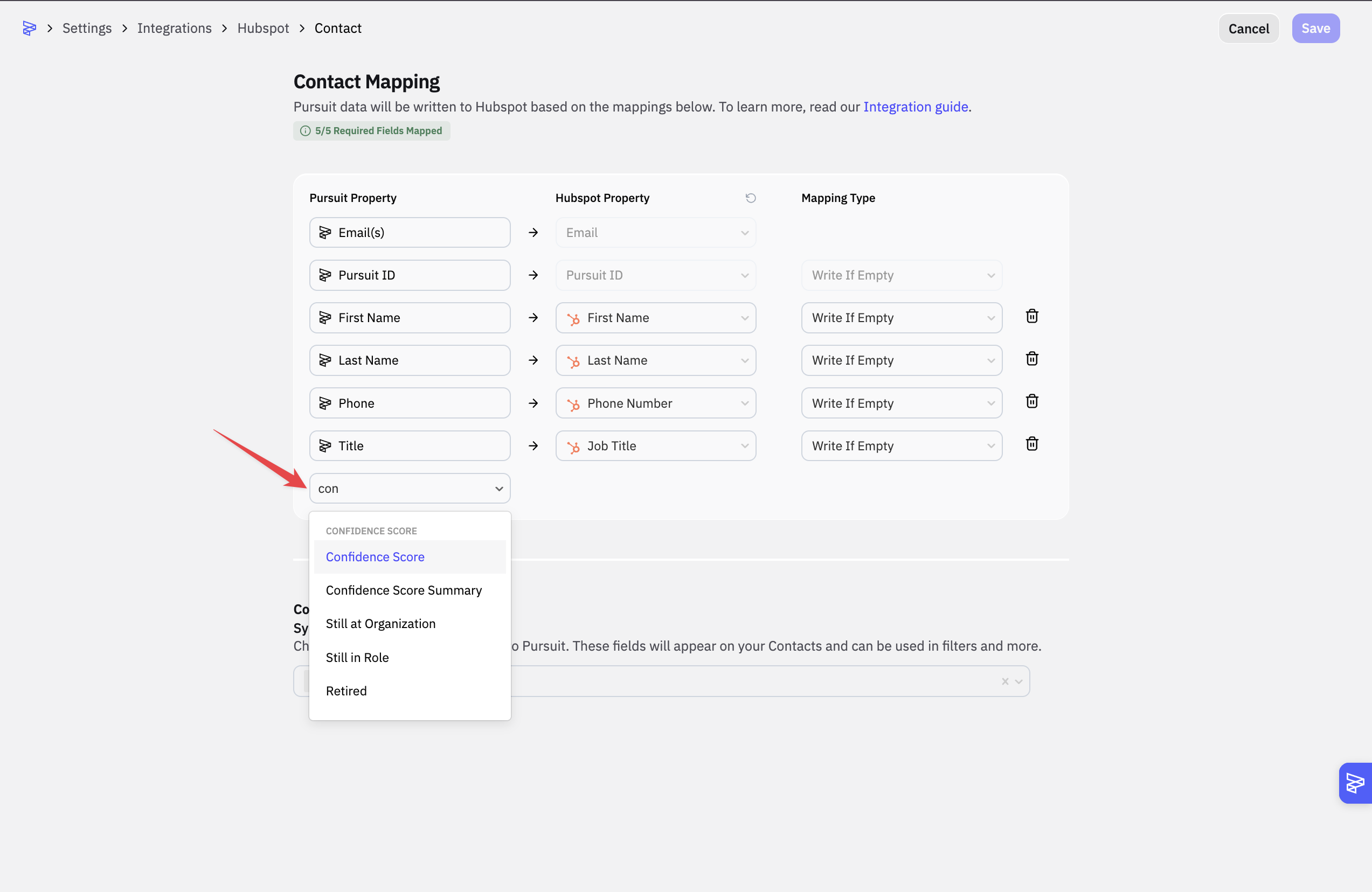
Confidence Score | How accurate and current the contact is, from 0 to 100 | Number |
Still at Organization | Whether the contact still works at the entity | Checkbox (boolean) or text |
Still in Role | Whether the contact still holds the title on file | Checkbox (boolean) or text |
Retired | Whether the contact has retired | Checkbox (boolean) or text |
Confidence Score Summary | A plain-language explanation of the score | Text |
In Pursuit, click Settings, then Integrations, and open your CRM.
Open the Contact Mapping page.
Map each Pursuit field to the CRM field you created in step 1.
Click Save.
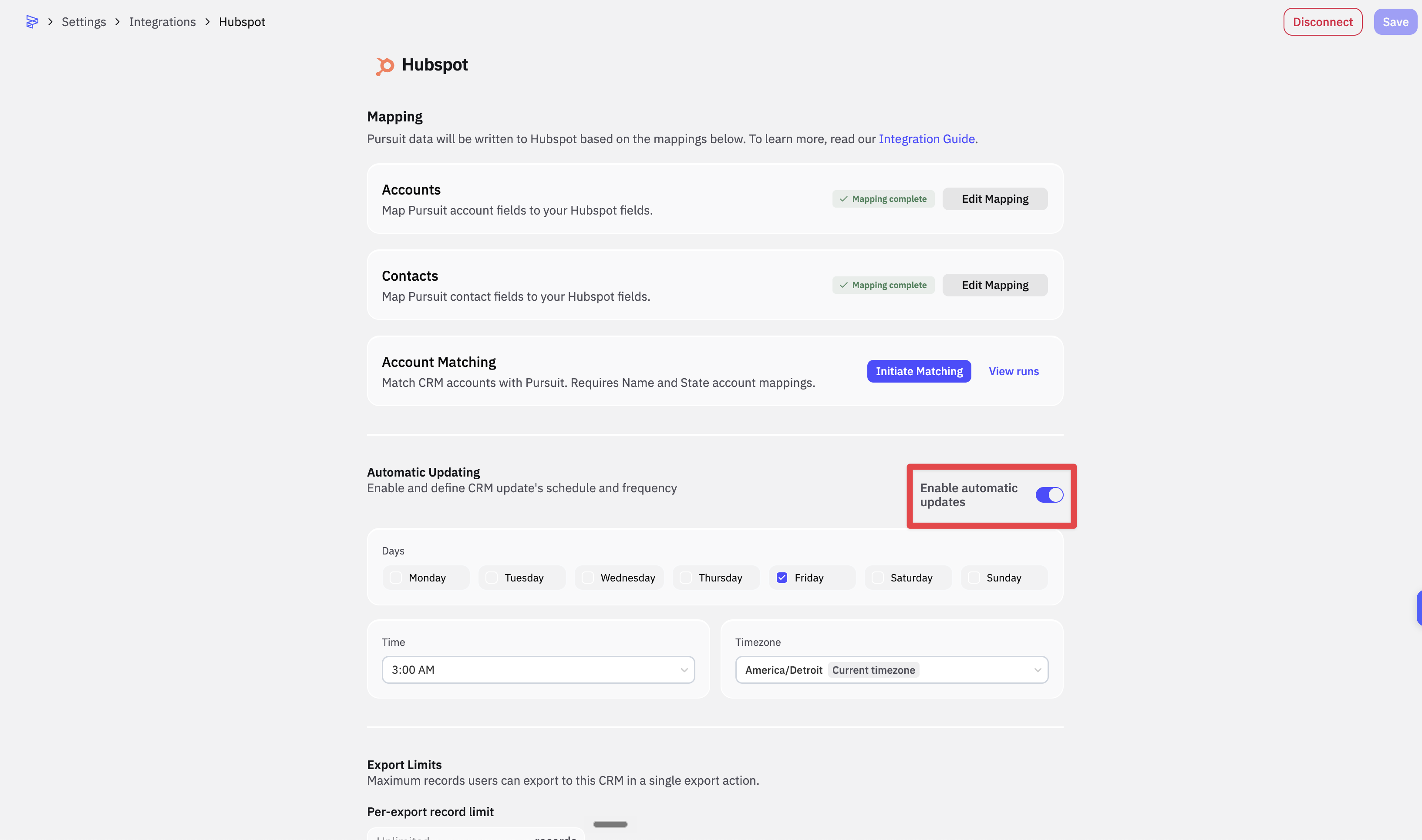
Turn on automatic contact updates.
Note: Each contact update uses 1 credit.
What Success Looks Like
After the next contact sync, contacts in your CRM show values in the new fields. A contact who changed roles shows Still in Role as false, so the rep knows to update the title before reaching out.
Common Issues
Problem: A field doesn't appear as a mapping option. Fix: Check the CRM field type. Confidence Score needs a number field, and Confidence Score Summary needs a text field.
Problem: The fields are mapped but still empty. Fix: Confirm automatic contact updates are on. Values fill in on the next sync, not at the moment you save the mapping.