Saving and Dismissing Signals
Last updated: September 18, 2026
Why Does This Matter To You?
Save signals to track them, dismiss signals to clean your feed. Both actions train Radar's AI to surface better matches over time, and both sets of insights are aggregated back to your Pursuit administrator(s) to adjust signal criteria to keep giving you the most relevant opportunity signals.
Saving Signals
How to save a signal
Your Saved tab acts as a curated shortlist of opportunities worth tracking. You can save quality signals from either your Explore or Inbox feeds.
Saving tells the AI this type of opportunity is relevant to you, improving your Inbox results. It also flags it for your Pursuit administrator(s) that this particular signal criteria is surfacing more relevant signals
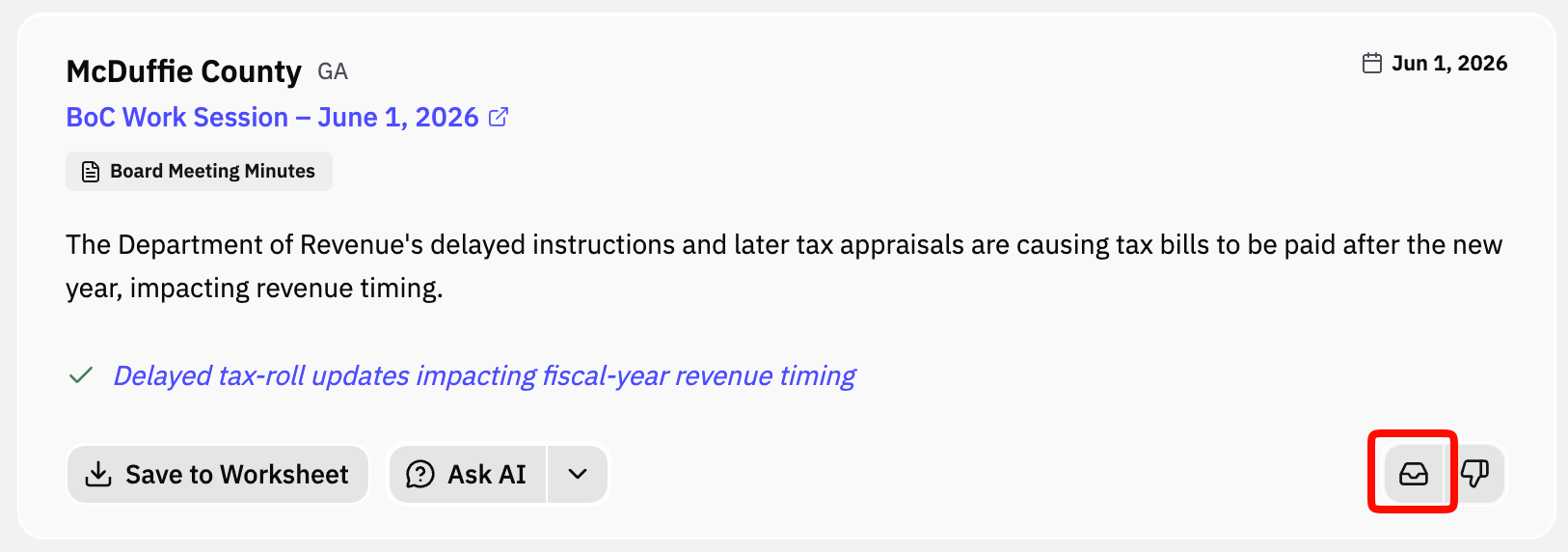
In Explore
Save a signal by clicking on the inbox icon
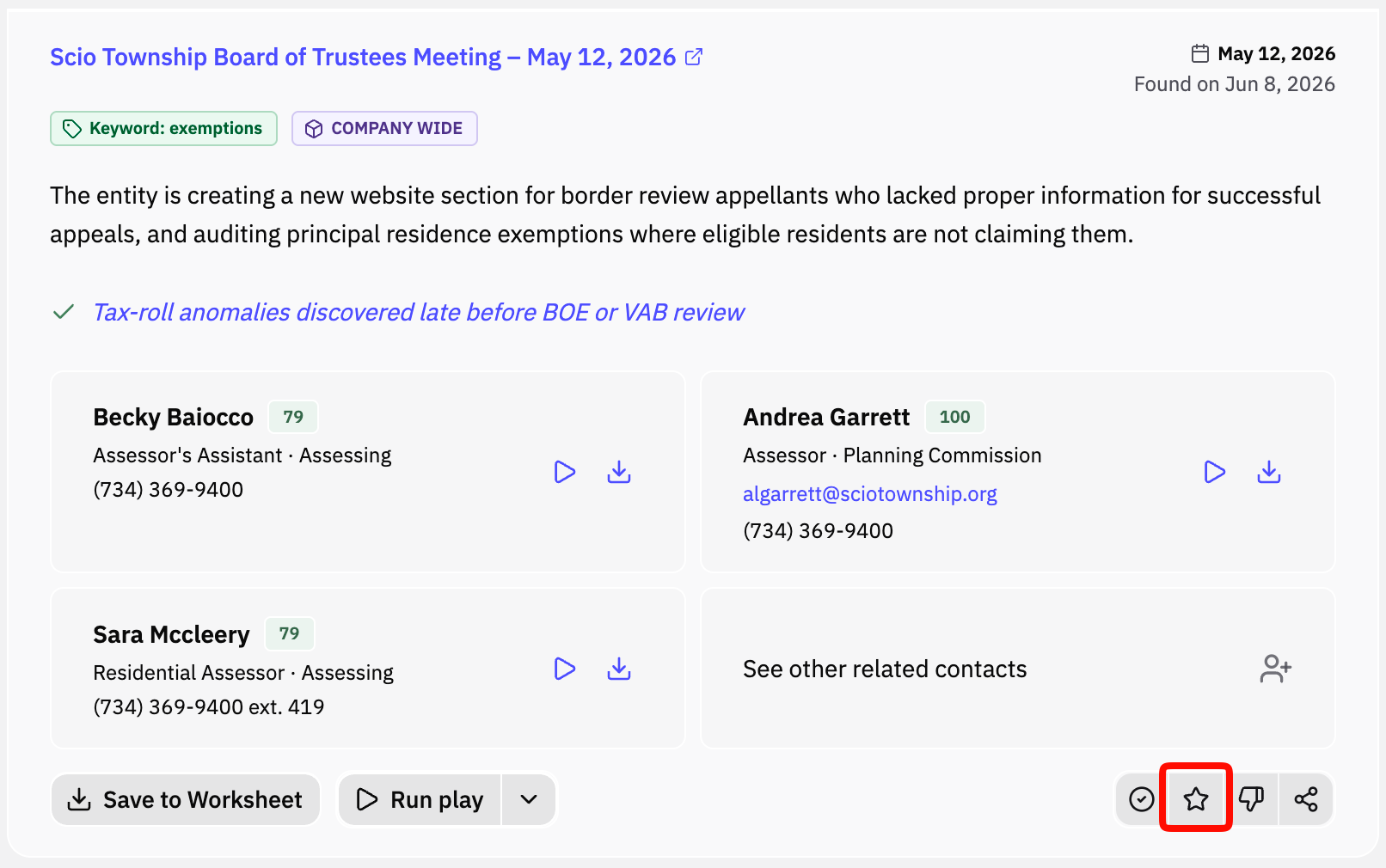
In Inbox
Save a signal by clicking on the star button
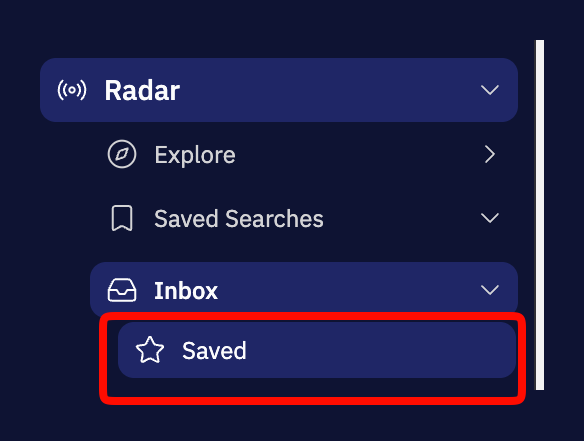
Finding Your Saved Signals
In the lefthand navigation, click on the down arrow next to Radar to open the full menu of options. Click on the Saved option to see your saved signals across both Explore and Inbox
Dismissing a Signal
How to dismiss a signal
Click the thumbs down ( 👎 ) to remove a signal from your feed.
Dismissing teaches the AI to deprioritize similar signals in the future. Dismissed signals are also flagged to your Pursuit administrator to potentially update or remove the particular signal criteria.
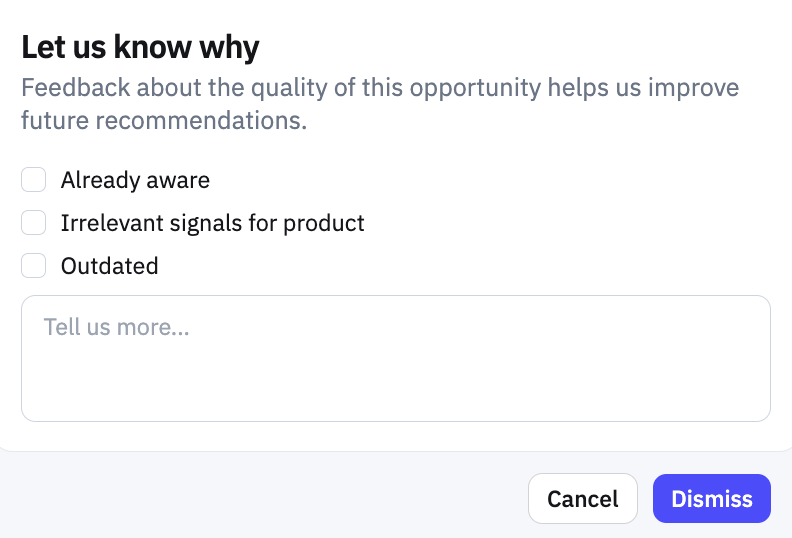
Reasons to dismiss a signal may include:
Already aware - confirms this was a good signal but for some reason you were already aware of the opportunity
Irrelevant signals for product - the related signal criteria resulted in an opportunity signal that is not relevant. This flags for your Pursuit administrator that this signal criteria may need to be adjusted or re-evaluated
Outdated - confirms this was a good signal but the opportunity signal was surfaced too late for the signal to be acted
How to find dismissed signals
Though dismissed, you may want to go back and find or review past dismissed signals.
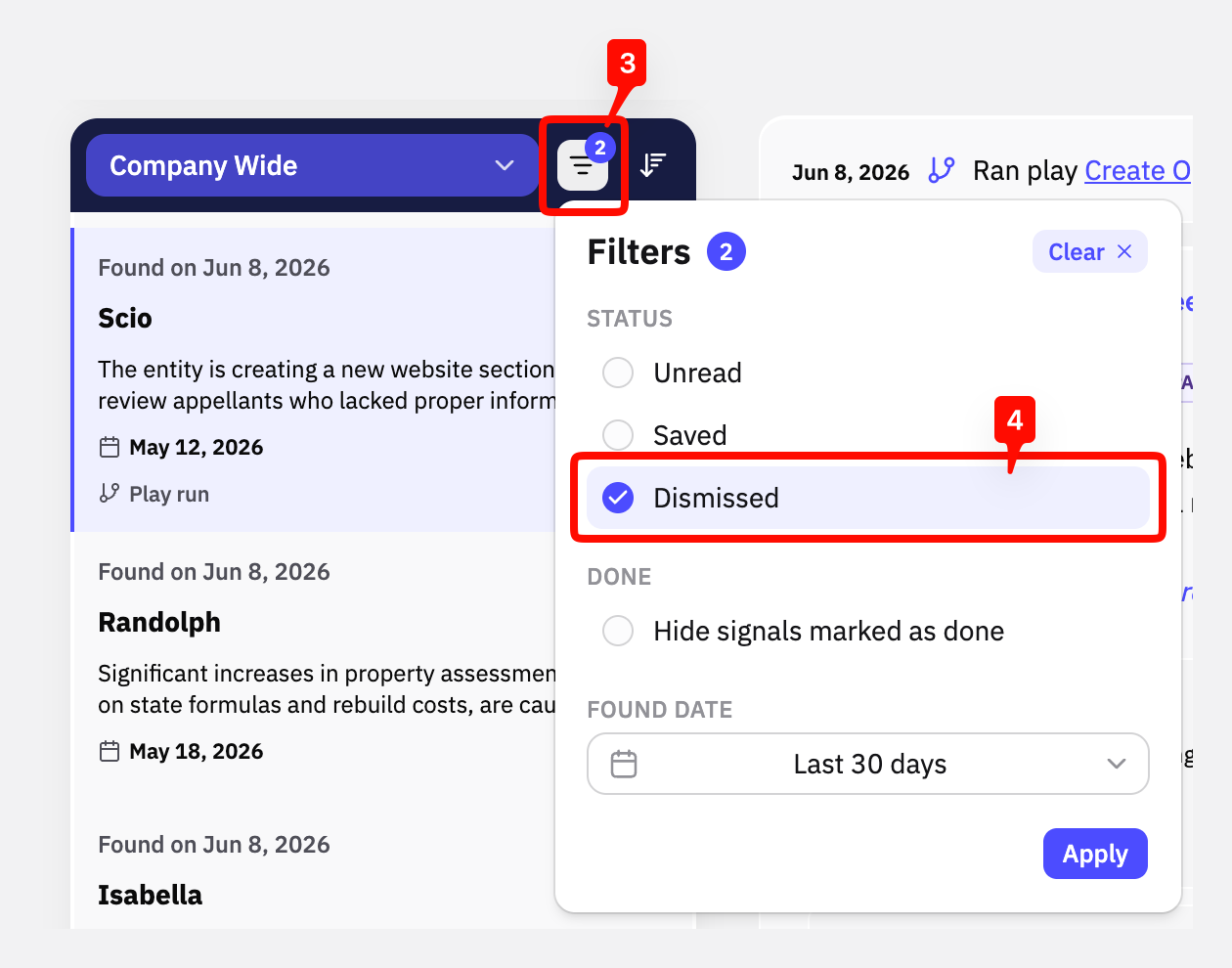
In the lefthand navigation, click on the down arrow next to Radar to open the full menu of options
Click on Inbox
Click on the filter dropdown
Select dismiss from the filtered view to see only your dismissed signals
Ensure you have selected the appropriate date range to see dismissed signals up to the past 90 days
You can also save and clear Signals by talking to Pursuit Agent. See How to work through your Radar signals with Pursuit Agent.
FAQs
What's the difference between saving a signal and saving a signal to a worksheet?
Saving a signal to a worksheet is best if you want to collaborate with colleagues on an opportunity signal, take notes on a signal (e.g. as a pipeline tracking mechanism), or potentially export signal summaries to Excel. Otherwise, you can just use the saved inbox to stay on top of quality opportunity signals.