Generating Talking Points
Last updated: June 9, 2026
In Research, Generate Talking Points is an AI column type that turns your research data into ready-to-use sales messaging.

Rather than asking reps to read through pages of research findings and translate them into conversation starters on their own, this feature does that synthesis automatically; producing structured talking points tailored to each entity and your specific product.
Adding a Talking Points Column
To add this column to your workbook:
Click Add AI Column in the workbook toolbar.
From the menu, select Generate talking points.
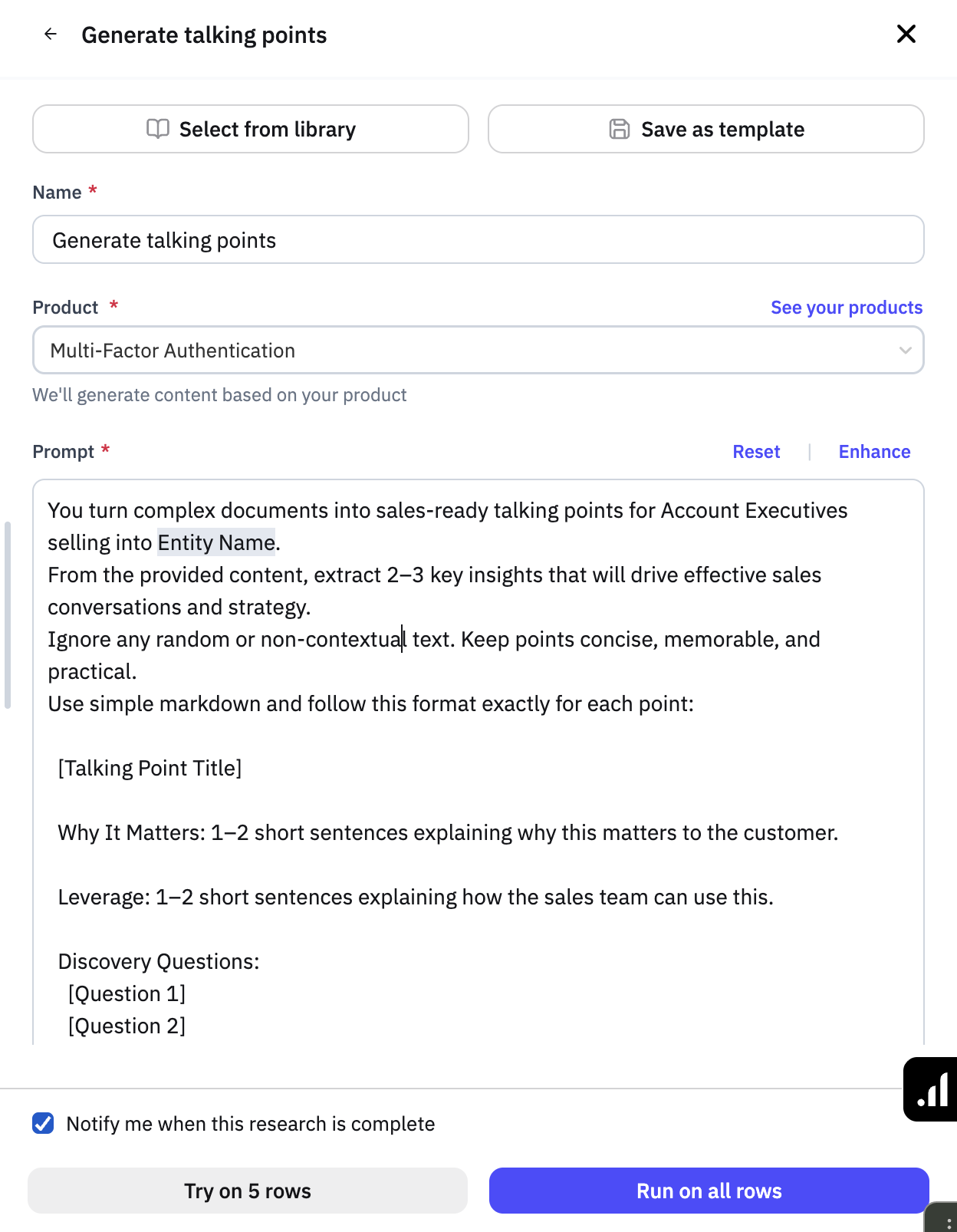
Configuring the Column
Name
The Name field defaults to "Generate talking points," but you can rename it to reflect the specific use case. For example, "Cloud Migration Openers" or "Q1 Outreach Talking Points."
Product Selection
The Product dropdown is a required field that determines which of your organization's product profiles the talking points should be framed around. Select the product profile that's most relevant to the entities in this workbook.
Click See your products to view or manage your product catalog.
The AI uses your product context to ensure that every talking point connects the entity's situation back to what you offer; not just generic observations about the account.
Prompt
The Prompt field contains a pre-built template that controls how the AI generates talking points. The default prompt instructs the model to extract 2–3 key insights from the research data and format each one with:
A talking point title — A short headline summarizing the insight
Why It Matters — 1–2 sentences explaining the relevance to the customer
Leverage — 1–2 sentences explaining how the sales team can use this
Discovery Questions — 3 open-ended questions to drive the conversation forward
You can customize this prompt to match your team's messaging framework. Use the Reset button to restore the default, or click Enhance to let the AI improve your prompt.
Tip: Type / in the prompt field to insert field references — this lets you dynamically pull in data from other columns in your workbook.
Output Format
The Output Format dropdown controls how the results are structured. The default is Text, which produces readable, formatted talking points in each cell.
Include Parent Entity Documents
The Include parent entity documents in context checkbox, when enabled, gives the AI access to documents associated with the entity's parent organization. This can produce richer talking points when your entities sit within a larger organizational hierarchy. For example, a state agency may have initiatives at the state-wide level that you want to reference in your talking points.
Templates and Library
Use Select from library to load a saved configuration, or Save as template to save your prompt and product selection for reuse across workbooks.
Running the Column
Once your configuration is set:
Toggle on Notify me when this research is complete if you'd like an email notification.
Click Try on 5 rows to test on a small sample first.
Review the output — check that talking points are relevant, actionable, and correctly reference your product.
Adjust the prompt or product selection if needed, then click Run on all rows.
Important: Generate Talking Points works best when it has rich research data to synthesize. Make sure your other research columns (custom prompts, competitor contracts, scoring, etc.) have finished running before you generate talking points. The more context available, the more specific and useful the output will be.
Reviewing Results
Click into any cell in the Talking Points column to see the detail panel:
Content — Displays the full formatted talking points, including titles, "Why It Matters" explanations, leverage suggestions, and discovery questions
Sources — Shows which research data, documents, and records the AI drew from when generating the talking points.
Tips for Generating Talking Points
Run talking points as one of the last columns in your workflow, after research prompts and scoring are complete. This allows you to pull in insights from the other AI columns.
Customize the prompt to match your team's actual sales methodology or messaging framework
Use the
/field reference feature to pull specific data points into your prompt for more targeted outputUse "Try on 5 rows" to iterate on your prompt before committing to a full run
Save effective prompts as templates so your team can reuse proven messaging configurations.