How to Find the Right Contacts at Each Account with the Find Contacts Column
Last updated: November 6, 2026
When to Use This
Use this when you know the work you need to reach, such as fleet maintenance or 911 dispatch, but not the job title, and you want a ranked list of the right people at every account in a worksheet.
Before You Start
Open an account worksheet in Research
Find Contacts uses 1 credit for each account it runs on.
Steps
Open your account worksheet in Research.
Click Add Column.
Select Find Contacts.
Describe who you're looking for in plain words. Example: Find contacts responsible for fleet maintenance
Click Run on 5 Rows. Each cell lists up to 10 contacts, best match first, each with a one-line reason they were picked.
Review the sample results. If they're off, edit your description and try again.
Click Run on all rows when ready.
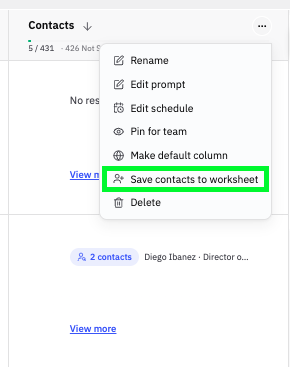
Click Save contacts to worksheet. Choose a new or existing contact worksheet. Every contact the column found is saved in one step.
What Success Looks Like
Each account has a short, ranked list of reachable contacts who do the work you described, and they're saved to a contact worksheet with a column showing which account each came from and why they were picked.
How Find Contacts Picks People
For each account, the column reads the documents that match your description, such as agendas, minutes, and RFPs. It picks out people named in those documents, contacts linked to them, and contacts whose title or department owns that area. Each candidate is scored on how well they fit your description, weighed against how confident Pursuit is that they still work at the account. The column returns only contacts with an email or phone number.
Send Found Contacts to Your CRM
When you export the account worksheet, check Found Contacts. The contacts go to your CRM with their accounts, already linked. This option is off by default, so exports you've already set up don't change.
Common Issues
Problem: A cell is empty. Fix: Pursuit found no reachable person for that work at that account. Broaden your description, for example "public works" instead of "fleet maintenance."
Problem: Someone you expected isn't listed. Fix: The column returns only contacts with an email or phone number. Search for the person in Intel to check their details.