Navigating and Managing Research Workbooks
Last updated: June 9, 2026
Related Articles
When to Use This
This article walks you through how to find, open, and manage your research workbooks within the Pursuit platform.
Accessing the Research Section
From anywhere in the Pursuit platform, select Research in the left-hand navigation.
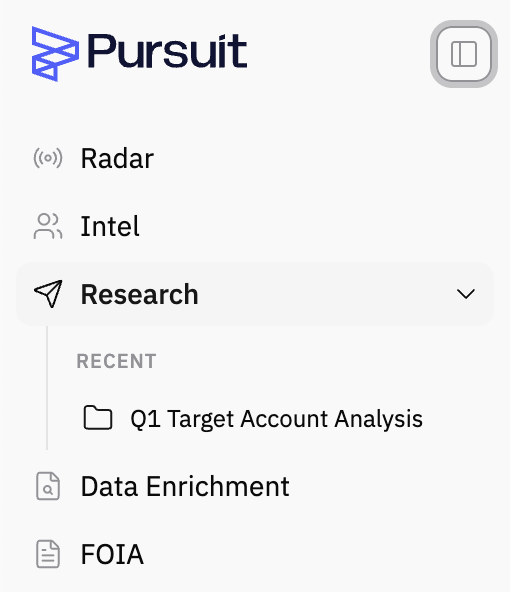
Once selected, you'll see two ways to quickly access your workbooks:
Left sidebar — Directly beneath the Research navigation item, you'll see a list of your most recent workbooks for quick access.
Research main page — The full Research page displays all of your workbooks in a centralized view.
You can collapse the left sidebar at any time if you prefer a wider view of the main Research page.
The Research Page Layout
The Research main page is organized into two sections:
Pinned Workbooks appear at the top of the page; giving you one-click access.
All Research is listed below in a table format.
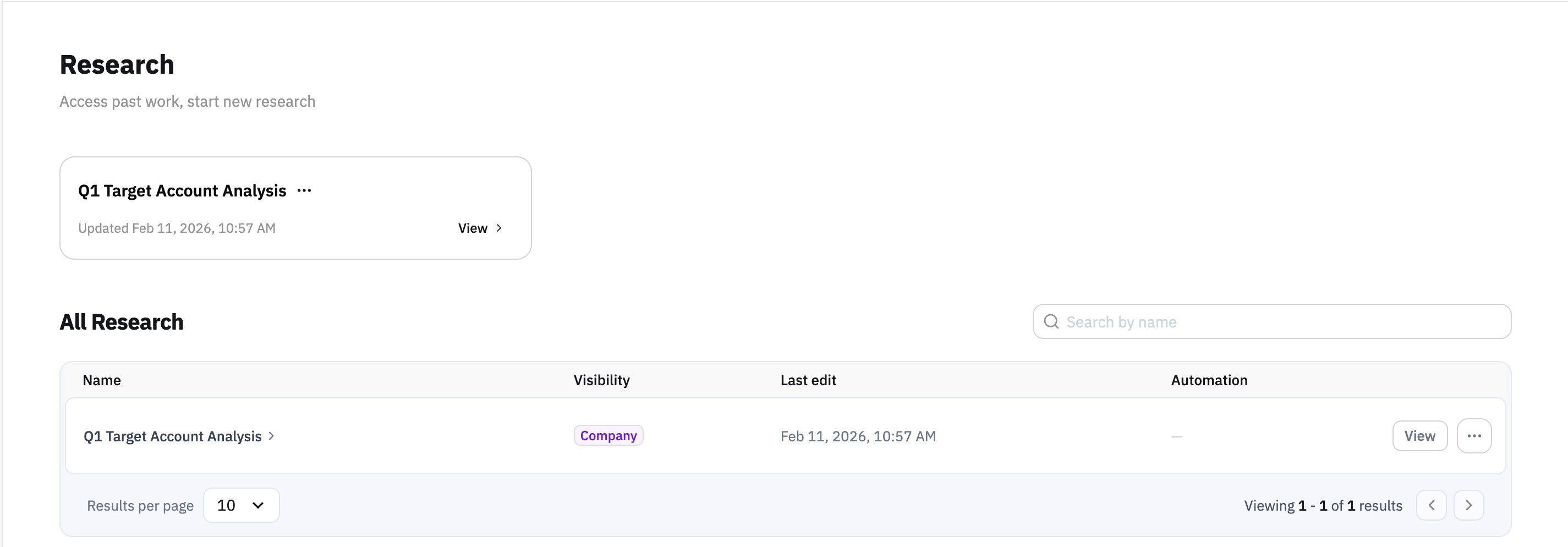
For each workbook, you'll see:
Name: The workbook title (click to open it)
Visibility: Whether the workbook is shared with your entire company ("Company") or kept private to you ("Private")
Last Edit: The date the workbook was most recently modified
Automations: Whether any automations are currently running on the workbook

Managing Workbook Sharing
You can control who has access to each workbook at any time. From the workbook list, you can change its visibility setting between:
Company: Shared with everyone in your organization
Private: Visible only to you
You can set this when you first create a workbook, or go back and change it later when you're ready to share your research more broadly with your colleagues.
Opening a Workbook
Click on any workbook name in the list to open it. You'll land in the workbook's spreadsheet view.