Supercharge your research with AI-powered prompts and AI functions
Last updated: August 14, 2026
In addition to standard metadata (see 📄 Creating Your Research Worksheet), you can conduct deep research with Pursuit's AI-powered prompts and AI functions.
Every AI column in Research now returns clean, structured fields that you define yourself. You decide exactly what gets pulled from each document, and that structure follows the data everywhere it goes: how the column is built, how results are displayed, how you filter and sort, what you export, and what lands in your CRM.
You can select from Pursuit curated AI prompts or you can create your own research prompts.
Pursuit-curated AI prompts
Out of the box, you can leverage Pursuit's default structured output prompts. Examples include:
procurement thresholds
repetitive events
top methods
From within your research worksheet,
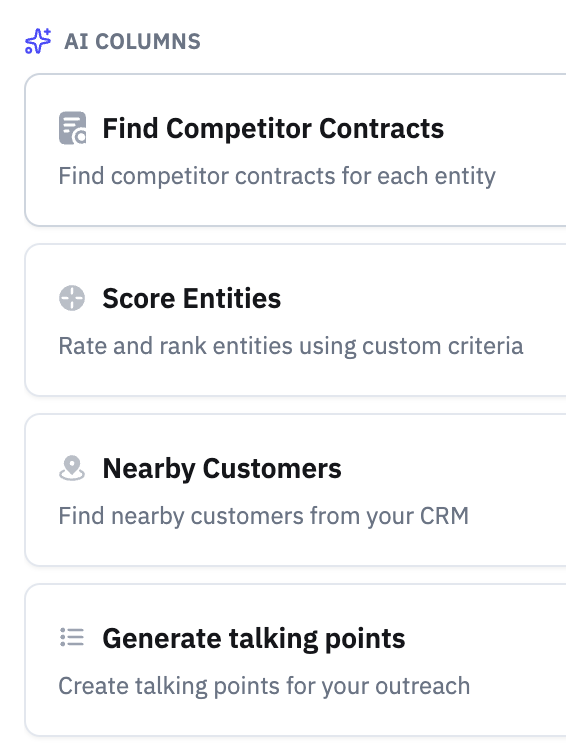
Click on the AI Columns button on the right

Select one of the Pursuit-curated AI prompts under Structured Output
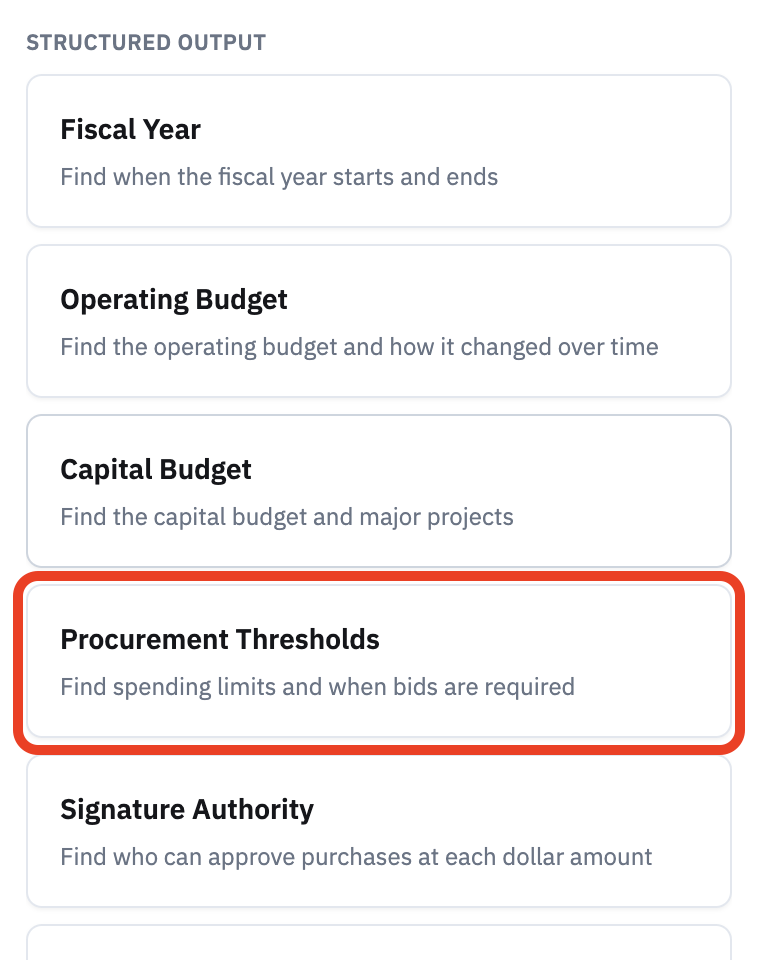
The sidebar will then show you the prompt panel.
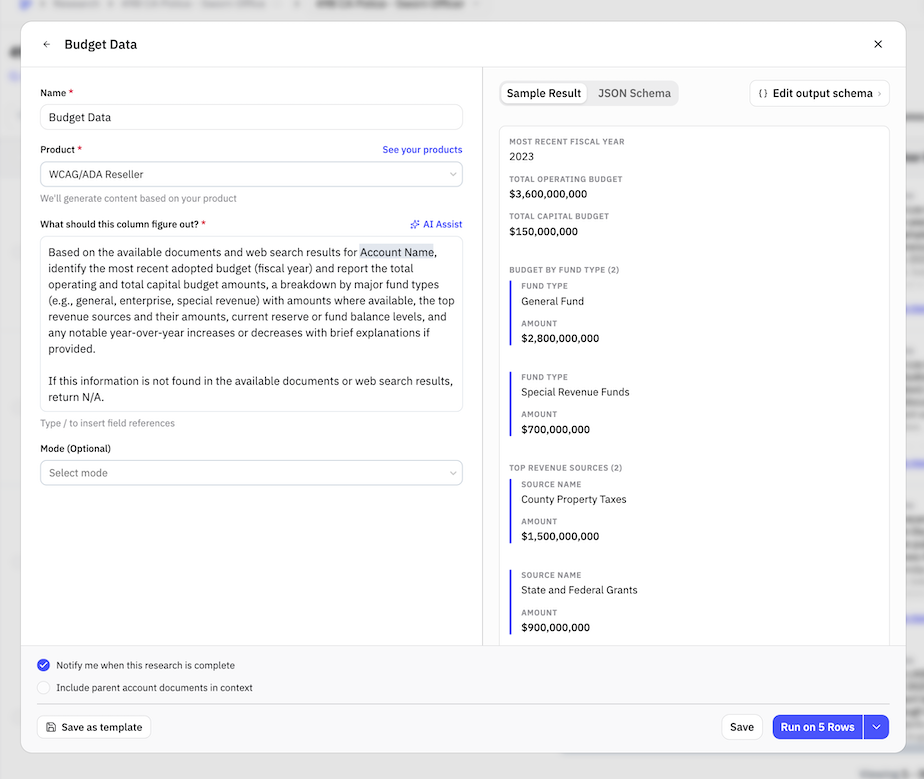
Within the panel you can:
change the variable name
select the specific product profile to use in the prompt (optional)
customize the output format and calculations
define your own output schema (see below)
Ensure "Notify me when this research is done" is checked. This will send you an email once the research finishes running.
Before applying to all rows, check the research results and output by clicking on the Try on 5 rows button
How to tell when a column has finished
Every AI column header carries a progress bar and a running count of finished cells, so you can see the state of a column without scrolling for empty cells.
Look at the column header. The count reads as finished over total, for example 412 / 1,240 done
Compare columns side by side to see which ones still have work left
Check "Notify me when this research is done" on the prompt panel if you want an email when the run completes instead of watching the sheet
The count reflects the rows in your current view. If you have filtered the worksheet, the progress bar describes the filtered rows, not the full sheet.
Re-running a column keeps the old answers on screen. Values are replaced cell by cell as new results come back, so the sheet stays readable the whole time.
This works the same way on Accounts and Contacts worksheets.
Define your own output schema
Every AI column lets you define exactly what gets extracted, so results come back as clean, predictable fields instead of a block of text.
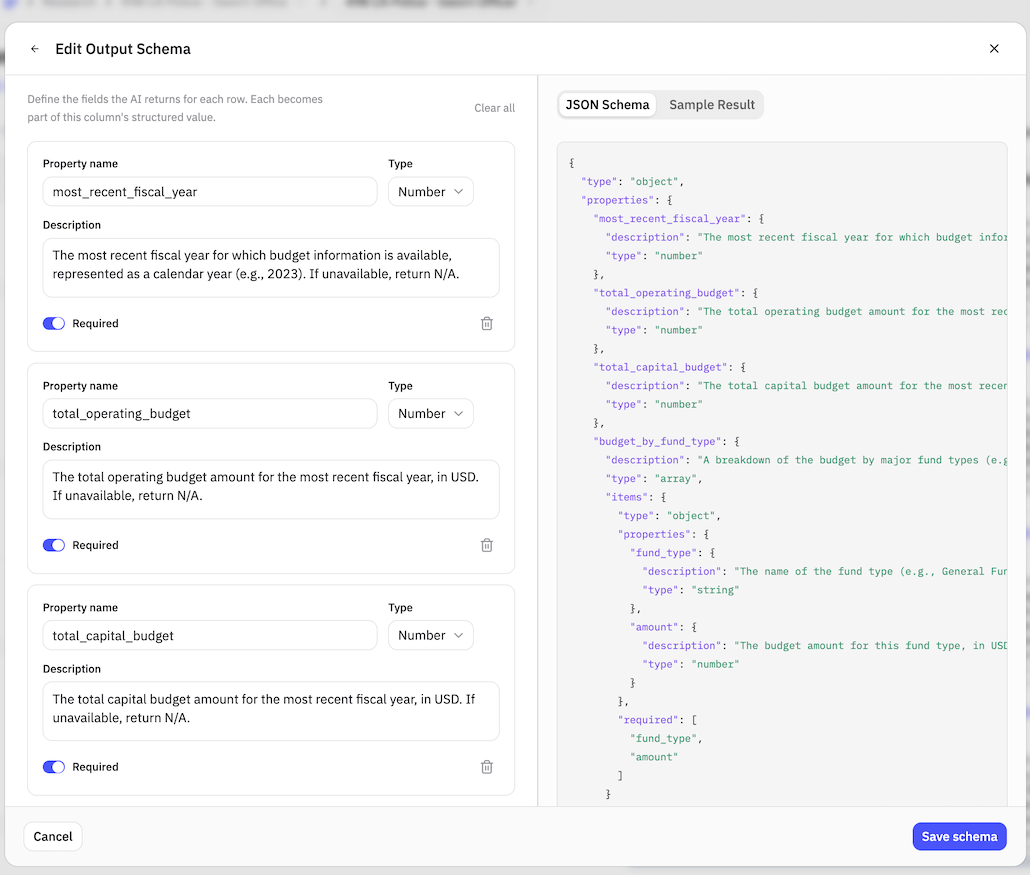
In the column builder, you can:
Add the fields you want to extract. For each field, give it a name and a short description so the AI knows precisely what to pull from every document (for example,
contract_value,contract_end_date, orawarded_vendor).Mark each field required or optional. Required fields must return a value for every row; optional fields return a value only when the information is present in the source.
See a live preview of the output shape. The builder shows you the exact structure your column will return before you save, so there is no guessing what you will get back.
Once saved, this schema follows your data everywhere: in how results display, how you filter and sort, what you export, and what syncs to your CRM.
How results are displayed
Each result renders dynamically in the format that best fits its data, whether that is a card, a list, or a structured view, rather than a wall of text. This makes it easy to scan the specific fields you defined and read multi-part results at a glance.
Filtering and sorting on individual fields
Because each result is made up of the fields you defined, you can work with those fields directly.
Filter by any individual field inside a result. For example, show only accounts where a contract value pulled from a budget document is above a threshold, or where a specific contract date falls in a given range.
Sort by any sub-field inside a result to surface your highest-value records first, ahead of everything else, so you can prioritize outreach and territory planning.
Exporting your fields
When you export, you get exactly the fields you defined, not parsed text you have to clean up afterward. You can export:
individual fields as their own CSV columns
results as JSON
results as rich text
Mapping fields to your CRM
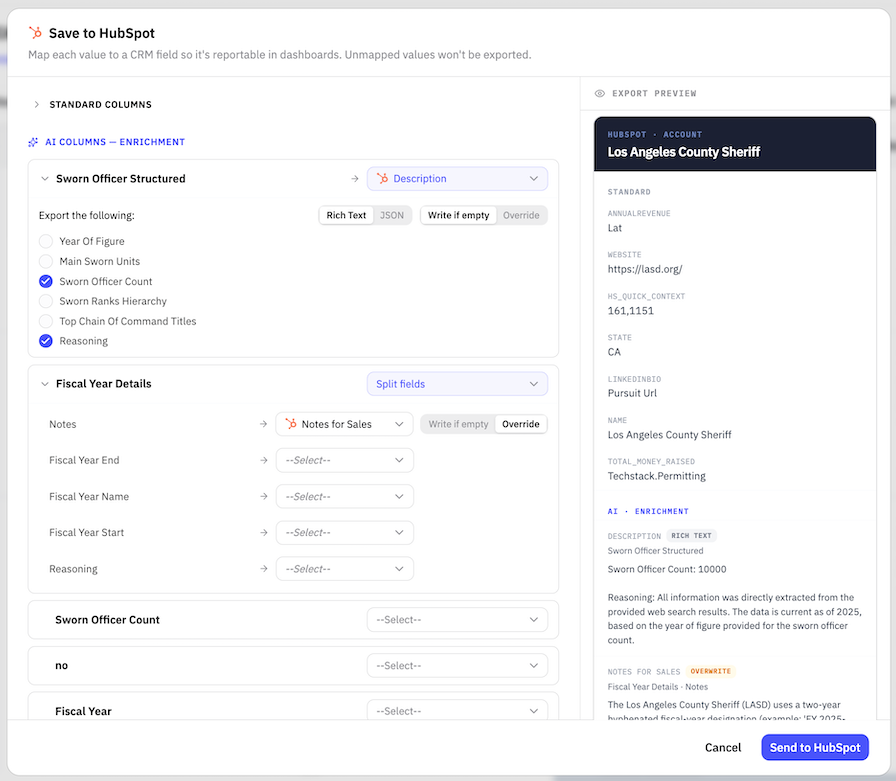
You can map individual fields from a result straight into specific CRM properties. Before anything syncs, you will see a preview of exactly what will be written to each property, so you can confirm the mapping is correct before you run it.
This means you can move from a document to your CRM with no manual copy-paste: ask Research for a value buried in a document, filter your accounts by it, sort to prioritize, and sync it into the right CRM field in one flow. For more on working with research in your CRM, see Using Account Research and Account Scores in Your CRM.
Custom Research Prompts
You can draft and apply your own research prompts. Check out this article to see how.
Applying AI functions
In addition to research prompts, you can enhance your insights by applying AI functions to your worksheet. For example:
conduct territory or account prioritization and planning
find nearby customers
generate talking point for your outreach campaign
See more about each here: