Your Personalized Feed (Inbox)
Last updated: June 9, 2026
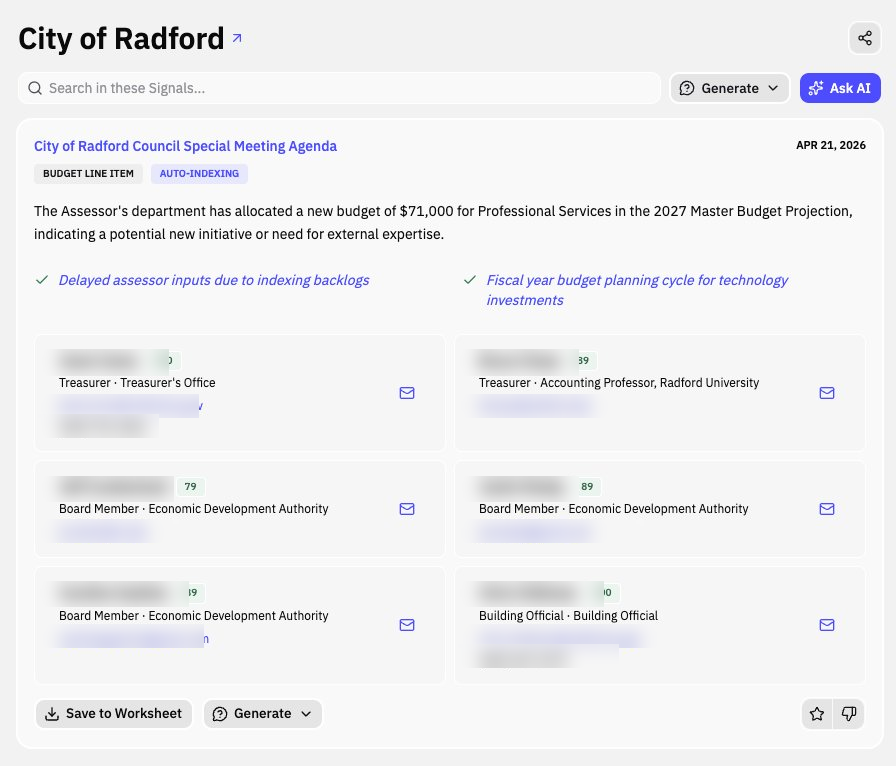
The Inbox tab curates signals specifically for you based on your product profiles, territory, and how you've interacted with signals over time. It's your daily briefing — while Explore shows everything, Inbox shows what matters most. Signals can be accessed in platform, by setting up a daily email feed, and or setting up a slack DM integration.
How Inbox Prioritizes
Profile match — Signals closely aligned with your product prompts and keywords rank higher.
Territory relevance — Signals from agencies in your selected territory are prioritized.
Recency — Newer signals rank higher because timeliness matters in procurement.
Engagement history — Signals similar to ones you've saved rank higher; similar to ones you've dismissed rank lower.
Managing Your Inbox
Filtering to unread signals
To focus on new signals and achieve inbox zero, use the Filters dropdown to select ‘Unread’. This will show only signals you haven’t opened yet. Your filter selection persists between sessions, so you’ll always return to your preferred view.
Taking action on signals
Beyond saving signals for follow‑up, you can mark signals as done using the checkmark icon next to the Star button. This archives the signal immediately when filtering done items — unlike Star or Dismiss actions, which require a page refresh to update the view.
Note: Filters won’t update live as you Star or Dismiss signals. You need to refresh the page for those actions to be reflected in your filtered view. Also, opening a signal marks it as read after several seconds, even if you don’t take action on it.
Setting Up Notifications
Inbox can deliver signals directly to your email inbox as email digests.
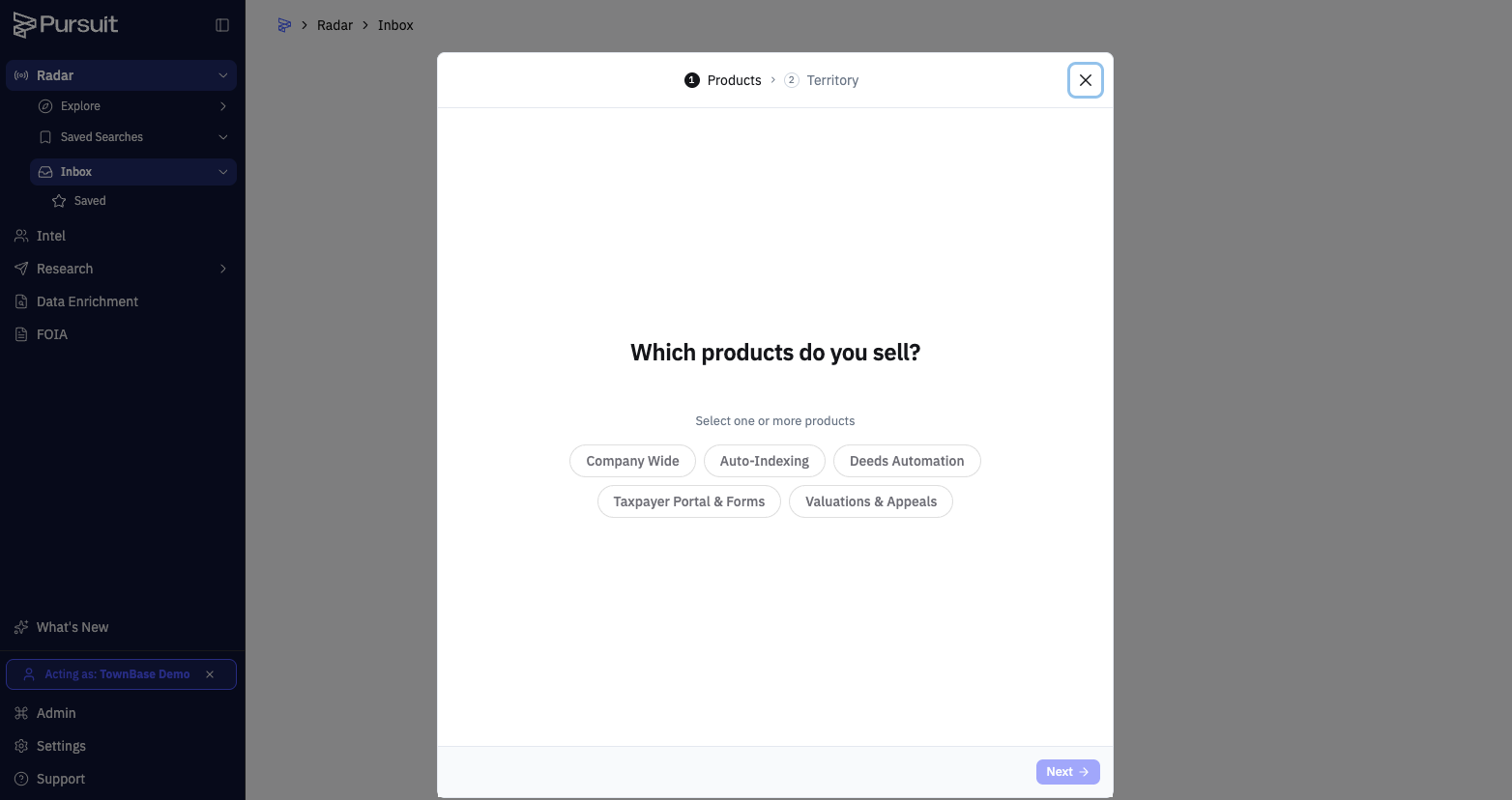
When toggled to Radar, Select 'Inbox'
First select available products you are most interested in monitoring signals for
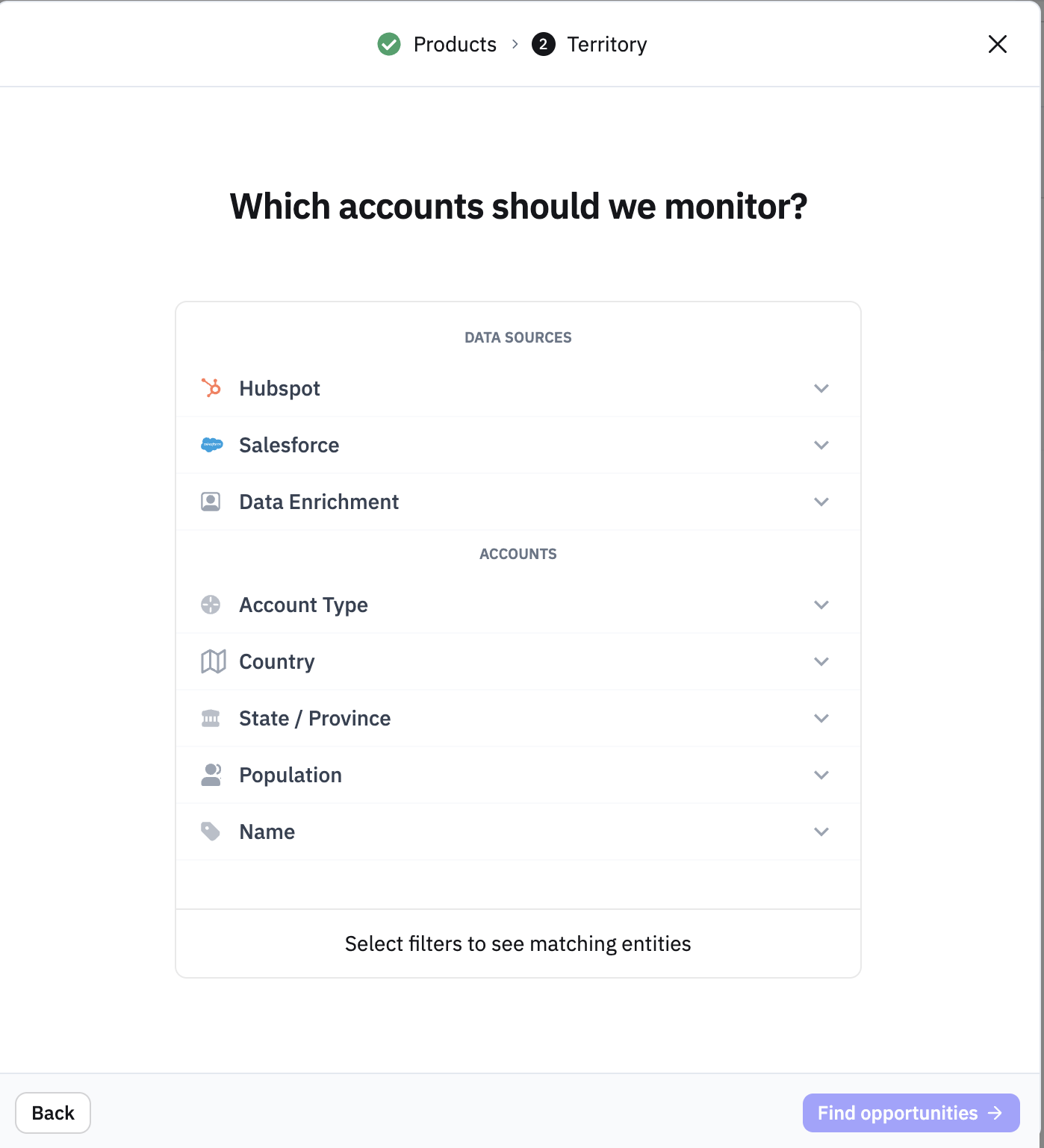
Then select specific CRM based filters (account owner, territory, assigned BDR, etc) or manually filter by available fields such as account type and location as needed.
See 📄 Setting Up Radar Inbox: Your Daily Signal Digest
Getting Better Results
Engage consistently. Save, dismiss, or mark signals as done daily — the more you interact, the smarter the feed gets.
Refine product prompts. Too many irrelevant signals usually means the product prompts need tightening. Work with your admin.
Use Inbox as your morning starting point. Review top signals, save the promising ones, dismiss the rest. Switch to Explore only when you want to go broader.
Tips
If you're not receiving email digests, check that notifications are enabled and your email is correct.
You can email a contact directly from inside Pursuit on an Inbox Signal from the contacts section
Inbox and Explore aren't mutually exclusive — use Inbox for your daily workflow and Explore for periodic broad scanning.
You can always navigate to your Inbox tab and then "Edit profile settings" if you need to adjust product selections or advanced filtering.