What is Radar?
Last updated: June 10, 2026
What Is It?
Radar scans millions of public government documents — RFPs, contracts, budgets, meeting minutes — and surfaces the ones relevant to what you sell and where you sell it.
How Radar Works
Your product profiles and territory selections tell the AI what to look for and where. See 📄 Understanding Products in Pursuitand
When a document signals a potential opportunity — a city budgeting for new software, a school district issuing an RFP, a state renewing a competitor's contract — Radar creates a signal card with a summary and the relevant entity.
The Three Tabs
Explore — Broad discovery across your territory and product areas. Your panoramic market view. See 📄 Browsing Signals in Explore
Inbox — Personalized feed that learns from what you save and dismiss. Also powers email digests. See 📄 Your Personalized Feed (Inbox)
Saved — Your shortlist of opportunities worth tracking. See 📄 Saving and Dismissing Signals
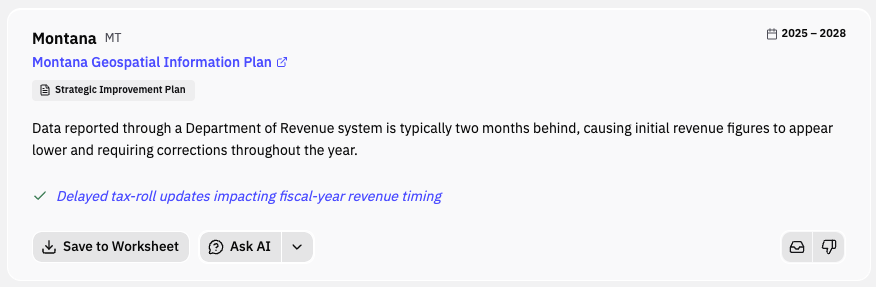
What a Signal Card Shows
Entity name — the government agency (click through to the full Intel profile)
AI-generated summary — key details from the source document
Source type — RFP, budget, meeting minutes, contract, etc.
Signal criteria indicators — why this was surfaced for you
Quick actions to save, dismiss, add to Research workbook, or run a Play
Getting the Most Out of Radar
Set up your products. Go to Settings → Products and define what you sell.
Select your territory. Choose states and regions in your Radar profile or connect your CRM to use your assigned accounts
Engage with your feed. Save relevant signals, dismiss irrelevant ones
Turn on notifications. Configure email digests so opportunities come to you.